

Guides & Tutorials · Document review · Word for Windows
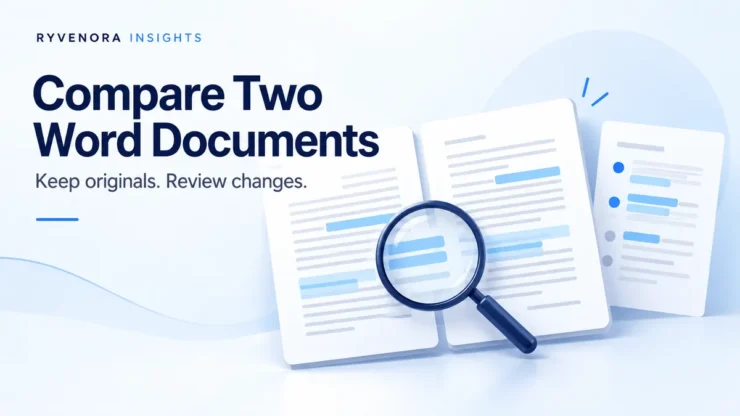
To compare two Word documents, use Review → Compare, select the original and revised files, and show the result in a new document. Keep both source files, then review the comparison before accepting changes or producing a clean copy.
This is useful when someone returns a revised proposal, report or procedure without explaining every edit. A comparison gives you a structured starting point; you still need to decide whether the changes are correct and appropriate.
These steps cover desktop Word for Windows. Check the linked documentation against your edition before starting.
Choose the operation that matches your question
Before opening the comparison dialog, decide what you are trying to learn. Finding differences between two snapshots is different from collecting feedback from several people.
| Your task | Start with | What to decide afterward |
|---|---|---|
| Find differences between two versions | Compare | Which changes should become part of the approved document? |
| Bring separate reviewers’ revisions together | Combine | How should conflicting suggestions be resolved? |
| Inspect layout and placement | Side by Side view | Does the revised document still read and display correctly? |
| Find an earlier cloud-file version | Version History | Which saved version is the correct baseline? |
Microsoft’s Combine revisions guide covers bringing reviewers’ copies together through Review → Compare → Combine. If three colleagues independently edited the same starting file, plan that reconciliation instead of treating one person’s copy as the definitive revision.
For a visual check, Microsoft documents View → View Side by Side, with optional synchronous scrolling. Use that alongside a change review when tables, illustrations or page layout matter. Looking at two windows is useful, but it is not a substitute for deciding what changed in the text.
Prepare a clear original and revised pair
Choose the baseline deliberately. “Original” should mean the version against which you want to assess changes, not whichever file happens to appear first in a folder.
- Preserve the received files. Keep an untouched copy of each in your normal approved storage location. Work with clearly named copies when you need to make preparatory edits.
- Identify the sequence. Read the title, opening text and a known changed passage. A filename containing “final” is not sufficient evidence that it is the latest version.
- Use descriptive names. A baseline such as “procedure-v03.docx” and a returned file such as “procedure-v04-review.docx” are easier to distinguish than two unrelated downloads with similar names.
- Agree what is being reviewed. Text, formatting, comments and layout may need different attention. Note whether the purpose is editorial approval, a factual check or preparation of a reader-facing copy.
If the baseline is missing, investigate the file’s history first. Microsoft’s Version History documentation explains that Microsoft 365 version history works with files stored in OneDrive or SharePoint in Microsoft 365. Open an earlier version to inspect it; restoring the live file is a separate decision and is not required merely to identify a baseline.
Do not convert both documents to another format as your first troubleshooting step. Preserve the native files and establish which versions you have before adding another transformation to the review.
Run Compare and keep the output separate
Follow Microsoft’s document comparison instructions:
- Open the two files in desktop Word.
- On Review, open Compare and choose the two-version comparison option.
- Set Original document to the baseline and Revised document to the returned version.
- Choose the comparison categories you need, such as text, formatting and comments, and word-level or character-level detail.
- Under Show changes in, select New document, then choose OK.
Output to a source file modifies it. Use a new document. Pause at any prompt about existing tracked changes: accepting it changes how those revisions are treated.
Save the result with a name that identifies both inputs, such as “procedure-v03-to-v04-comparison.docx.” Keep it separate from the file you will eventually approve. Record the chosen comparison options if another reviewer may need to reproduce your result.
A comparison report is easier to trust when its inputs are explicit. Before reviewing a long file, confirm that a known changed sentence appears as expected. If it does not, stop and check the source pair and options.
Review changes as decisions, not just colored marks
Microsoft’s tracked-change review guidance explains how to move through changes and accept or reject them. Use the review controls to work through the document rather than relying on a quick scroll.
Review a complete sentence or paragraph around each meaningful edit. A changed number may be easy to spot, while its effect depends on the surrounding unit, date or condition. Check related references elsewhere in the file as well.
- Numbers and dates: compare the value, unit, period and any related table.
- Instructions: check that a removed step does not leave a later reference unexplained.
- Names and terminology: look for inconsistent replacements across headings, tables and captions.
- Deleted passages: consider whether a necessary qualification or source has disappeared.
- Formatting: check whether the change affects hierarchy, emphasis or readability.
Separate editorial judgment from factual confirmation. A smoother sentence can still contain an unsupported claim. Where a change needs an owner’s decision, record the question instead of silently approving it because the wording looks polished.
For example, ask “Should the response target now be two business days, and where is that approved?” rather than “Is this change okay?” A specific question gives the responsible person enough context to answer without repeating the whole comparison.
If the result is noisy, investigate before starting again
A large amount of markup can make a useful report difficult to read. Treat that as a reason to inspect the inputs and review scope, not proof that the document is unusable.
| What you notice | Check first | Practical next step |
|---|---|---|
| Unexpected additions or deletions | Are the original and revised files in the intended order? | Confirm a known passage before reviewing the full file. |
| Too many distracting details | Which comparison categories did you select? | Keep the first report; create a separately named focused comparison if needed. |
| A known edit is missing | Did you select the correct versions? | Recheck filenames and file contents against the handoff record. |
| Page flow looks wrong | Does the issue appear in the revised source itself? | Inspect both sources visually and record the affected location. |
| Several reviewers disagree | Are these independent edits from a shared baseline? | Plan a combined review and assign someone to resolve conflicts. |
If you run a focused second pass, name its scope clearly. A text-focused review should not be described as a complete layout and formatting review. Keep enough information for the next person to understand what was checked and what remains open.
Avoid making unrelated cleanup edits to the inputs halfway through. That changes the question you are asking. If a source must be corrected, save a new version and identify it in the next comparison.
Prepare a review copy or a clean copy intentionally
Decide what the recipient needs. An internal reviewer may need marked differences and unresolved questions. A reader receiving an approved procedure may need only the final text. Keep those deliverables distinguishable.
Microsoft warns that No Markup only hides tracked changes; removing them requires accepting or rejecting them. Do not use the hidden view as evidence that the file contains no revisions. Resolve comments separately according to your review process.
For a delivery copy in Word for Windows, Microsoft’s Document Inspector guidance recommends working on a copy because removed information may not be recoverable. Open File → Info → Check for Issues → Inspect Document, choose the categories to inspect and review the findings before removing anything.
The Inspector can identify items such as comments, revisions and document properties, but its checks have limitations. It does not replace reading the visible content. Choose removals deliberately: stripping useful review material from the only retained comparison file defeats the purpose of keeping a review record.
- The approved wording answers all outstanding review questions.
- Headings, tables, links and page layout have been checked in the delivery copy.
- The recipient receives the intended marked or clean version.
- The filename makes the document’s status clear.
- The source pair and comparison remain available in the appropriate internal location.
If you need a PDF, export the approved delivery copy and inspect that result too. Our Word-to-PDF guide covers checking layout, links and review material after conversion.
Example: a procedure returned by a colleague
Hypothetical example: an office manager sends version three of an onboarding procedure to a colleague. Version four comes back with revised instructions, changed dates and a reorganized table.
The manager retains both received files and creates a comparison named for the version pair. During review, a changed deadline needs confirmation from the process owner, while the revised table needs a visual check. Those questions go into a short handoff note.
After the owner confirms the deadline, the manager prepares an approved delivery copy and checks the table in that copy. The marked comparison stays internal. A later reader can tell which file is approved without opening three documents called “final.”
Record the baseline filename, revised filename, comparison filename, review scope, unresolved decisions and approved output. Add the reviewer and date. This is usually more useful than an unexplained attachment saying “see changes.”
Frequently asked questions
Is Compare the same as Track Changes?
No. Compare examines two versions after the fact. Track Changes records revisions while editing is being tracked. Establish which kind of review evidence you actually have.
Should I use Compare for several reviewers’ copies?
Use Microsoft’s Combine workflow when collecting separate reviewers’ revisions. Decide how to resolve conflicting suggestions rather than treating one returned file as automatically authoritative.
Can I just send the document in No Markup view?
That hides the marks rather than removing the revisions. Prepare the intended delivery copy and check it before sharing.
What if I only have Word in a browser?
The comparison steps in this guide are for desktop Word for Windows. Use an approved desktop installation or ask a colleague with the appropriate tool to create the comparison; preserve the source files during the handoff.
Sources and scope notes
Microsoft Support documentation was checked on October 27, 2026 and is linked beside the relevant instructions. This guide describes a document-review workflow rather than hands-on testing of a particular Word installation. The office-manager example is hypothetical.



Add comment