

Technology · Webcam buying guide · Work calls and recording
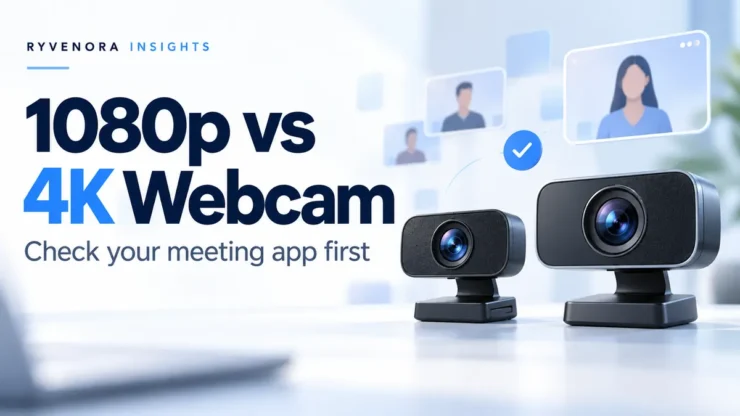
Start with a 1080p webcam for ordinary work calls unless you have a specific reason to capture more detail. A 4K webcam is worth considering for compatible local recording or reframing a wider shot. Before paying extra, check the resolution your meeting app can actually send.
Resolution is one part of the purchase. A camera also needs to suit your lighting, focus distance, framing, computer connection and everyday software. The useful question is whether the upgrade improves the task your audience sees, not whether the box has the largest number.
Your camera’s capture mode, the video sent through a meeting service and a locally saved recording are different things. Verify each one you need. A sharp self-preview does not establish what another participant receives.
1080p and 4K describe pixel dimensions, not the whole image
For a conventional 16:9 picture, Full HD 1080p is 1920 × 1080 pixels, while 4K UHD is 3840 × 2160. UHD has twice as many pixels along each dimension and four times as many overall. That arithmetic does not mean a 4K webcam produces four times better-looking video.
The lens, sensor, exposure and processing also affect the result. Compare the actual picture in your normal workspace. Look for useful detail and stable behavior rather than judging only the advertised output size.
| Your main task | Starting point | What to verify |
|---|---|---|
| Routine seated work calls | Evaluate 1080p models first. | The remote picture, focus and framing in your usual app. |
| Local high-resolution recording | Consider 4K capture. | The recording program, supported mode and saved output. |
| A wider shot cropped for delivery | Consider higher-resolution capture. | The crop you actually need and the resulting detail. |
| Showing small physical objects | Evaluate focus and positioning first. | Whether the camera can focus at the required working distance. |
Read resolution and frame rate together. As a concrete specification example, Logitech’s Brio product page lists 4K at 30 frames per second and 1080p at up to 60 frames per second. That illustrates why “4K” alone does not describe every supported mode; it is not a recommendation or a result from testing that product.
Check the app, account and actual meeting conditions
Open your service’s current video documentation before choosing hardware. Look for camera-video requirements rather than screen-sharing specifications. A feature for sharing a presentation does not automatically describe the quality of your face-camera feed.
Google Meet
Google’s Meet video-settings documentation lists send-resolution options up to 1080p, subject to compatible hardware, processing power and eligible account editions. It also distinguishes send resolution, which affects what others see, from receive resolution, which affects what you see. Its current guidance says 1080p is not supported in Firefox or Safari.
Check the account you actually use for meetings and its available settings. Do not assume a more expensive webcam changes account eligibility or makes a missing send-resolution option appear.
Zoom
Zoom’s HD video guidance describes 720p and 1080p meeting video with account, hardware, support-enablement and bandwidth prerequisites. Its instructions also cover portal and app settings, and note that virtual-background use can affect outgoing resolution.
The practical lesson is to verify your organization’s configuration before buying. Ask the administrator which camera-video mode is available for your normal meeting type. Treat a product’s compatibility badge as a reason to investigate support, not proof that every meeting will transmit the camera’s maximum capture resolution.
These examples were checked on October 27, 2026. Service rules can change, so use the linked documentation for the current conditions rather than relying on an old product review or an assumed universal video limit.
4K can make sense when you need the extra capture area
A higher-resolution source gives a recording workflow more pixels to work with before delivery. If you capture a wide view and later select a smaller region, that can be useful. The benefit depends on the crop, focus, lighting and software, so validate the intended result.
Hypothetical pixel-count example: a centered 1920 × 1080 region fits inside a 3840 × 2160 UHD frame. That region uses half the original width and height. This is geometry, not a promise of optical zoom, improved sharpness or identical image quality from every camera.
Ask whether the extra capture capability serves a recurring job:
- Do you record a tutorial locally and need to reframe it afterward?
- Do you switch between a wider teaching view and a closer seated presentation?
- Will your recording software expose the required capture mode?
- Does your final delivery need that additional detail?
If the only output is a small participant tile during routine calls, test that use before paying for recording features you may never use. If recording is important, inspect the saved file separately from the meeting preview and confirm that the selected mode was retained.
Compare focus, field of view and mounting
Make a short requirements list that applies equally to both resolution classes. This prevents a 4K label from distracting you from a poor fit for the desk.
Focus at your actual working distance
Test normal seated movement and any close-up demonstration you intend to give. Look for distracting focus changes, softness at the subject or difficulty returning focus to your face. If manual controls matter, verify that they are available for your operating system and allowed on a managed computer.
Frame the person and the workspace deliberately
Decide how much background should be visible. A broad view may be useful for teaching beside a board, while a seated call may need a tighter composition. Check the distinction between an optical field of view and a software crop, then inspect the resulting frame.
Check the physical setup
- Can the mount hold the camera steadily on your monitor?
- Does it obstruct the display or press awkwardly against a thin bezel?
- Can you position it near eye level without blocking another device?
- Does the cable reach your chosen port with enough slack?
- Is the privacy shutter convenient enough that you will use it?
Do not assume the camera’s microphone solves your audio needs. For that separate decision, our USB microphone vs headset guide covers placement, comfort and a call test.
Verify the complete USB and software path
Check the exact model’s requirements, including the capture mode, port, cable and application. For example, Logitech’s Brio 4K troubleshooting guidance specifies USB 3.0 and application support among its requirements. Do not generalize that one product’s requirements to every webcam.
Write down the path you will actually use: camera, supplied cable, adapter or dock, computer port and application. A connector fitting physically does not establish that every link supports the desired mode.
For an initial test, use a direct connection that meets the manufacturer’s instructions. Then test through your normal dock or hub. This gives you a controlled comparison if the camera behaves differently at the desk.
The computer also has to handle the meeting workload. Google’s Meet requirements guide explains that device performance affects the experience and recommends different hardware for high-quality video, effects and multitasking. Test with the other programs you normally keep open, not only in an otherwise idle setup.
Test what the audience receives
Use a short test meeting with a willing colleague or a second device you control. Avoid recording people without their agreement. Keep the conditions repeatable: same desk, camera position, lighting and normal meeting software.
| Check | Action | Useful evidence |
|---|---|---|
| Device selection | Select the intended external camera in the app. | The picture is from the correct camera. |
| Normal seated use | Speak and move as you normally would. | Face detail and focus remain acceptable. |
| Remote view | Ask the other participant to inspect the received picture. | The assessment is based on the call, not only self-preview. |
| Typical workload | Open your usual documents and share a screen. | No unacceptable delay or instability appears. |
| Recording, if required | Save a short sample using the target recording program. | The saved file has the intended dimensions and usable detail. |
| Daily connection | Repeat through the dock or hub you use. | The desk setup still supports the required behavior. |
Change one thing at a time if the result is poor. Compare a direct connection, a different light position or an adjusted camera setting before swapping everything at once. Record which configuration worked so you can restore it later.
If the service exposes call statistics, use them as additional evidence for that session. A single successful test does not guarantee the same network conditions on every future call.
Spend around the problem you can identify
Hypothetical example: a consultant mainly attends client meetings. Their current picture is poorly framed because the laptop sits low, and the desk faces away from the main light. They first test a better camera position and lighting arrangement. Only then do they compare external webcams under those conditions.
A trainer, by contrast, regularly records demonstrations and crops the footage afterward. A 4K model may justify its cost if the recording program, connection and final output all support that workflow. The purchase follows the task rather than a general rule that higher resolution is always worth more.
Compare the complete cost: camera, any necessary mount or compatible cable, approved configuration software and the time needed to set it up. Check local pricing, warranty terms and the retailer’s return conditions before ordering. There is no universal price premium that makes 4K a good or bad purchase.
Frequently asked questions
Will a 4K webcam make every call 4K?
No. Verify the meeting service, account, settings and connection. Camera capture capability and transmitted meeting video are separate.
Is 1080p at 60 fps better than 4K at 30 fps?
They prioritize different capabilities. Choose around motion, detail and the modes your software actually supports, then inspect the result for your task.
Can a 4K camera help with a tighter crop?
A higher-resolution source provides more pixels for reframing. The useful result depends on the camera, crop and software; test the intended composition.
Should I replace a working 1080p webcam?
Identify a specific problem first. If your current camera meets the remote-view and recording requirements, a resolution upgrade alone may not solve anything you need.
Sources and scope notes
Official Zoom, Google Meet and Logitech documentation was checked on October 27, 2026. Sources are linked beside the relevant claims. The Brio specifications are an illustrative manufacturer example, not a product endorsement or hands-on comparison. The scenarios and crop calculation are hypothetical; no benchmark results are claimed.





Add comment