

Web Hosting & Domains / File access / Practical guide
Choose SFTP when your host provides SSH-based file access for the account you should use. Choose FTPS when your host supports FTP over TLS and you need that service, including a directory-limited FTP account. In cPanel, an account created under FTP Accounts is not automatically an SFTP login.
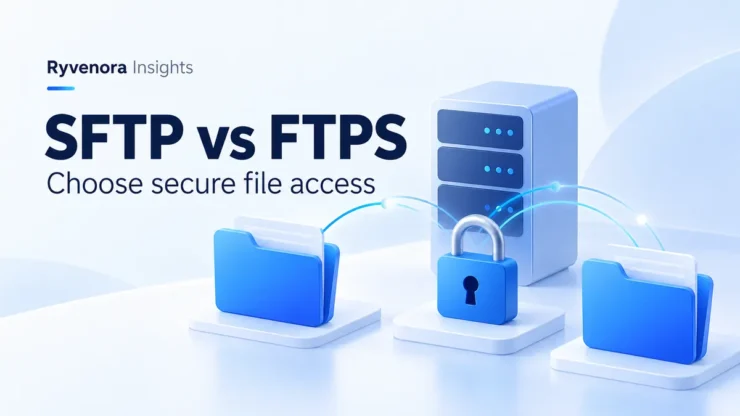
Both options can provide encrypted file transfers when configured correctly. The important decision is not which abbreviation sounds newer: it is which protocol your host supports, which account has the appropriate access, and how you will verify the server before uploading anything.
Collect the protocol, server hostname, port, username, authentication method, and intended remote directory from your hosting provider. “FTP details” is not a complete connection specification. Do not substitute settings from another hosting company or another plan.
01 / SFTP and FTPS are different protocols
cPanel’s SFTP documentation describes file management over a secure SSH connection and explicitly distinguishes it from FTP. Selecting SFTP in your client connects to the SSH service, not to the host’s FTP service with an extra security checkbox.
FTPS adds TLS to FTP. In explicit mode, the client requests the secure connection; implicit FTPS expects TLS from the beginning. These are separate connection modes, so a correct username and password will not fix a mismatch between the selected mode and the server.
| Connection choice | Security mechanism | What to confirm |
|---|---|---|
| SFTP | SSH-based file transfer. | SSH/SFTP availability, eligible user, SSH port, and host-key fingerprint. |
| Explicit FTPS, sometimes labelled FTPES | FTP upgraded to TLS. | Require TLS, verify the certificate, and protect file data as well as login traffic. |
| Implicit FTPS | TLS expected at the start. | Use only when the host specifies this mode and its port. |
| Plain FTP | No TLS protection. | Do not choose this as a workaround for a failed secure connection. |
WinSCP’s connection documentation lists common defaults: 22 for SFTP, 21 for explicit FTPS, and 990 for implicit FTPS. These are defaults, not instructions for every host. Use the port assigned to your service.
For FTPS, check the client’s protection of both the control connection and file-transfer data. WinSCP documents requesting encryption for both. In another client, verify its corresponding settings rather than assuming the word “TLS” in one place covers the entire transfer.
02 / Choose access scope before choosing convenience
A login that can reach your entire hosting account is different from one intended for a single upload directory. Start with the files the person needs to manage, then choose an account and protocol that support that scope.
cPanel confirms that FTP accounts cannot authenticate over SFTP. Its supported SFTP access depends on SSH/shell access and an eligible system account. Creating an FTP user and putting the same credentials into an SFTP profile will not turn it into an SSH user.
For your own maintenance
Use the provider-approved account for the site you administer. Do not use a server’s root account for ordinary website uploads. Keep a record of whether the login is a hosting account, a separate FTP account, or another access method explicitly provided by the host.
For an agency or temporary contractor
cPanel’s FTP Accounts interface lets you define an FTP account’s top-level directory. If your provider supports FTPS for that account, it can be an appropriate way to grant file access to a limited location. Confirm both the directory restriction and the TLS service before handing it over.
If SFTP is required but the available login exposes more files than the contractor needs, ask the host about a restricted account or a different deployment method. Do not assume that a saved “starting directory” in the client limits permissions: it is a navigation preference, not evidence of a server-side restriction.
A designer needs to upload approved images to one project folder. Sharing the main hosting login may provide much broader access than the task requires. A provider-supported, directory-limited account over FTPS could fit better. If the workflow specifically requires SFTP, request suitable restricted access instead of silently widening the handoff.
03 / Build a connection profile with explicit values
Use a client that supports the selected protocol, and save a clearly named site profile. FileZilla’s Site Manager and similar connection managers keep the protocol and other settings visible together. Give production and staging profiles unmistakably different names.
| Field | What to record | Mistake to avoid |
|---|---|---|
| Protocol and encryption | SFTP, explicit FTPS, or host-specified implicit FTPS. | Selecting plain FTP because the interface calls every connection an FTP site. |
| Hostname | The provider’s file-access endpoint. | Assuming the public website domain is always the correct endpoint. |
| Port | The provider’s exact value. | Copying a default or another host’s port. |
| Username | The full eligible account name. | Using an FTP-only user for SFTP. |
| Authentication | Password or supported SSH-key method. | Confusing your login credential with the server’s identity proof. |
| Remote directory | The verified destination for this site. | Uploading into the wrong site or the account home folder. |
For a concrete provider example, Namecheap’s FileZilla guide lists SFTP on port 21098 with the cPanel username. Its alternative FTPES profile uses port 21, FTP as the protocol, and “Require explicit FTP over TLS.” This illustrates why the port and user must match the protocol. It is not a universal cPanel configuration.
Verify the destination separately from the connection. The folder for an additional domain or a staging site may differ from the main site’s folder. Obtain the document root from your hosting panel or provider rather than guessing from the domain name.
04 / Verify identity before trusting the connection
Encryption and server identity answer related but different questions. You want a protected connection to the intended server, not simply a connection that presents a security prompt.
SFTP: compare the host-key fingerprint
WinSCP’s host-key guidance explains the first-connection trust decision and warnings when a remembered key changes. Obtain the expected fingerprint through a trusted provider channel, such as authenticated support or account documentation, and compare it with the client’s prompt.
If a remembered key changes unexpectedly, stop and confirm the reason. A legitimate server migration is possible, but the warning itself does not establish that a migration occurred. Do not replace the saved key solely to make the connection continue.
The server host key identifies the server. Your own authentication key identifies you to the server. These are different roles; a correct password or user key does not remove the need to check the server identity.
FTPS: check the certificate and hostname
WinSCP documents TLS server-certificate verification. Use the endpoint your host supplies and investigate certificate warnings, including name or trust problems, with the provider. A host may specify its server hostname rather than your public website domain.
Do not disable certificate checking as a permanent fix. If your host intentionally uses a certificate requiring manual trust, obtain verification through an independent trusted channel before accepting it. Keep the confirmed endpoint and verification procedure in the connection record.
05 / Test a small transfer before editing a live site
A successful login is only the start. You still need to establish that the account reaches the right location and can perform the intended operation without touching unrelated files.
- Confirm the environment. Check the saved profile, hostname, remote path, and whether this is production or staging.
- Inspect the directory. Compare expected filenames with the project record. Stop if the location is unfamiliar.
- Use a disposable test location. In an approved folder, upload a harmless text file with a unique name. Do not include credentials, customer data, or executable code.
- Download and compare. Retrieve the test file and confirm its contents match. Check the client’s failed-transfer queue as well as its success messages.
- Remove only the test item. Confirm the filename and path before deleting it.
- Prepare recovery before real changes. Save the current files and arrange any required database backup before overwriting a working application.
A file-transfer client is not a complete WordPress recovery plan. Our WordPress export vs full backup guide explains why site files and database recovery need separate attention.
For larger changes, test in staging and plan the deployment. Our staging-to-live checklist covers that workflow. Avoid turning on automatic synchronization or deletion until you understand its direction, preview, and effect on server-only files.
06 / Diagnose the stage that failed
Record the exact error and the point where it appears. Remove passwords and other secrets before sharing logs. Changing multiple settings at once makes it harder to identify what fixed the problem.
- Timeout before authentication: recheck the provider’s endpoint and port, service availability, and any required network access. Ask the host whether the connection is reaching the service.
- Authentication rejected: confirm the username, supported login method, account status, and SFTP eligibility. Do not repeatedly retry an FTP-only username against SFTP.
- Identity warning: resolve the host-key or certificate question before continuing.
- Login works but listing or transfer fails: record the transfer-stage error and selected protocol. With FTPS, ask the provider to check its data-connection requirements and the client’s transfer mode.
- Files appear in the wrong place: disconnect and verify the account’s directory scope and the site’s actual document root.
Do not solve a secure-connection failure by removing TLS, accepting every identity prompt, or broadening file permissions indiscriminately. Get the missing connection detail first.
07 / Finish the job and close temporary access
After the transfer, check the intended website behavior and retain a short record: who performed the work, which destination changed, and how to recover the previous version. Keep credentials in your approved password-management process rather than in project notes or screenshots.
For temporary FTP access, cPanel distinguishes deleting the account from deleting the account and its files. Choose the account-only operation when revoking access while retaining the website. Its documentation warns that the combined deletion can remove the account’s accessible site directory and break the site.
- Confirm the correct site and destination received the files.
- Check the failed-transfer queue and the site’s expected behavior.
- Remove temporary access through the appropriate hosting controls.
- Keep the tested profile details and recovery record without exposing secrets.
Frequently asked questions
Is SFTP the same as FTPS?
No. SFTP uses SSH-based file access. FTPS is FTP with TLS. Your client must use the protocol, mode, port, and eligible account that the hosting service supports.
Can a cPanel FTP account use SFTP?
An FTP-only account created in cPanel’s FTP Accounts interface cannot authenticate over SFTP. Ask your host about eligible SSH accounts or use supported FTPS for the FTP account.
Does SFTP always use port 22?
No. That is a common default, but providers can assign another SSH port. Namecheap’s documented shared-hosting example uses 21098. Use the exact value for your account.
Which is better for a contractor?
Choose the supported method that provides the required files with appropriate restrictions. Directory-limited FTPS may fit some cPanel tasks; if SFTP is required, ask for suitable restricted access rather than sharing a broader main login by default.
Sources and editorial notes
Primary documentation was checked on October 27, 2026. cPanel, Namecheap, and WinSCP sources are linked beside the relevant claims. Provider settings are examples, not universal defaults. The contractor scenario is hypothetical. This guide describes a preparation and verification workflow; it does not report hands-on testing of a hosting service.




Add comment