

WordPress & Web Development / Block editor / Content reuse
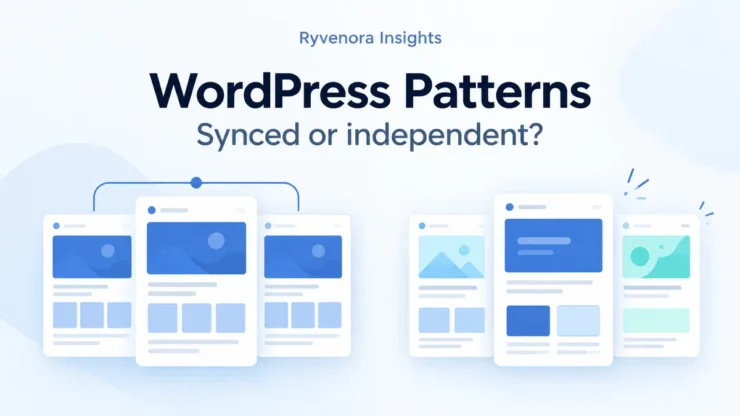
Use a synced WordPress pattern when its shared content should change everywhere it is used. Choose an unsynced pattern when you want a reusable starting layout whose copies can evolve independently. If the design should stay shared but selected text or images must differ, consider a synced pattern with overrides on supported blocks.
The key decision is the scope of the next edit. A contact panel repeated across a website and a different introduction for every service page may look similar, but they need different update behavior.
This guide covers patterns in the WordPress block editor, with official documentation checked on 27 October 2026. Menu labels can vary by WordPress version, theme, hosting environment, and permissions. It does not describe a page builder’s separate template system.
Synced, unsynced, and overrides compared
A pattern packages a group of blocks for reuse. WordPress’s Theme Handbook distinguishes synced patterns from unsynced ones: an unsynced insertion is independent, and later changes to the saved pattern do not update its earlier uses. That distinction matters more than whether two sections currently look identical.
| Choice | What stays connected? | Good illustrative use |
|---|---|---|
| Synced pattern | The shared pattern definition. | A contact panel with the same details wherever it appears. |
| Unsynced pattern | Inserted content is independent of future pattern-definition edits. | A case-study layout filled with different projects. |
| Synced pattern with overrides | Shared design, with designated content customized per use. | Service cards sharing a design but having different titles and links. |
| Detached instance | That instance becomes regular blocks. | A deliberate one-off section that needs independent structural changes. |
These choices govern the pattern relationship. They do not isolate blocks from every other site change. For example, an independently edited heading can still pick up changes to the theme’s typography. Keep content synchronization separate from the styling rules applied to that content.
Also distinguish a pattern from a template part. WordPress’s comparison of patterns and template parts places template parts in site structure, such as a footer, while patterns package reusable content. Decide where a section belongs before building a second system to maintain it.
Ask which fields should change together
Before opening the editor, list what the section contains: heading, body text, image, button label, button destination, and layout. For each item, decide whether a future correction should affect every use or only one page.
A consultancy has three service pages. Its main office contact details should remain identical on all three. Each service description and enquiry link is different. A shared contact panel can be synced; the service descriptions need independent content, or carefully configured overrides within a shared design.
Do not sync a whole page merely because its sections share a visual style. The larger the shared unit, the more likely it is to combine content with different update requirements. A smaller reusable panel is often easier for editors to understand.
- Same content and design: start by evaluating a synced pattern.
- Different content and freely editable structure: start with an unsynced pattern.
- Different selected content, consistent design: evaluate supported overrides.
- One exceptional layout: consider an independent instance rather than changing the shared definition.
Agree on an owner for shared information. An editor should know who can approve a new contact destination or changed wording before saving an update that affects several pages.
Create a small pattern and give it an explicit name
Build the section in a draft or a test environment first. Use realistic sample lengths: a very short placeholder heading will not reveal how a longer service name wraps on a phone.
The Learn WordPress lesson on creating patterns explains selecting the container or blocks, opening the options menu, creating a pattern, and choosing whether it is synced. Use the Sync choice deliberately rather than accepting it without checking.
- Select just the blocks intended for reuse. List View can help you identify the correct outer group.
- Open the selected blocks’ options and choose the pattern-creation action.
- Give the pattern a name that describes its purpose and update behavior.
- Choose synced or unsynced to match the decision you made for its content.
- Insert it into a separate draft and confirm you selected the intended saved pattern.
Names such as “Contact panel — shared” and “Case study — independent start” make the choice clearer than “Blue box 2.” Keep names meaningful to the people maintaining the site, not only the person who first built the layout.
Find reusable patterns through the inserter’s Patterns area. Management access differs between theme types: the Theme Handbook describes the Site Editor route for block themes and an Appearance → Patterns route for classic themes. A missing Appearance → Editor menu does not by itself mean post-content patterns are impossible.
WordPress’s block-pattern documentation describes content-only editing and an Edit pattern control for full editing. Limited layout controls do not, on their own, tell you whether an edit is local or shared. Check the pattern’s synchronization state and which editing context you have opened.
Use overrides when content varies but design should stay linked
Overrides fill the gap between a completely shared section and completely independent copies. The WordPress Developer Blog’s introduction explains their purpose: allow content-specific changes while retaining the synced pattern’s underlying layout and design.
For example, a hypothetical training site might reuse a course card design while changing each card’s title, summary, and enrolment destination. Treat those as deliberate content slots, rather than allowing every editor to redesign the card.
WordPress.com’s current override guide documents enabling overrides on supported blocks, including Heading, Paragraph, Image, and Button. In that interface, edit the original synced pattern, select an eligible block, open Advanced settings, choose Enable overrides, give the override a name, and save. Then customize the allowed content in each inserted use.
Check the controls in your own installation before committing to this design. Do not assume every plugin block or every attribute supports an override. Test the exact field you need, especially a button’s destination as well as its visible label.
Keep a small content specification beside the pattern: which fields vary, which remain shared, and what each button should do. If an editor needs to change the number of columns for one page, that is a different requirement from replacing a course title.
The same WordPress.com guide documents Reset for restoring an overridden block’s original content. Review the existing local value before using it; resetting a field is a content change, not merely a visual refresh.
Detach an exception before editing it independently
If one use needs to diverge from the shared pattern, disconnect it first rather than changing the original and hoping the effect is local. WordPress.org’s synced-pattern documentation describes Detach pattern, which turns that use into regular blocks. It also notes that detaching may be unavailable when the pattern is locked.
Newer interfaces can use different wording. WordPress.com’s pattern-management guide, reviewed on 5 October 2026, calls the synced-pattern action Disconnect pattern. Confirm the action’s meaning instead of looking only for one exact label.
- Select the intended pattern instance on the intended page.
- Use its detach or disconnect action if an independent copy is what you need.
- Make the page-specific changes and save the page.
- Check another use of the original pattern to confirm it remains unchanged.
The tradeoff is ongoing maintenance. That exception will no longer receive updates through the original pattern relationship. Record why it exists so a future contact-detail correction does not overlook it.
Do not delete the original pattern as a way to make one instance independent. WordPress.org warns that removing a synced pattern affects its uses. Detaching an instance and deleting the shared resource are different operations.
Use two drafts to verify the update boundary
A small test can expose a wrong choice before it reaches several public pages. This is a suggested verification procedure, not a claim that these steps were performed on your installation.
| Test action | Check in draft A | Check in draft B |
|---|---|---|
| Edit the original synced definition | Shared change appears. | Shared change appears here too. |
| Edit an allowed override in A | Local content changes. | Its separate content remains correct. |
| Edit an unsynced insertion in A | The inserted copy changes. | The other copy remains independent. |
| Detach A, then edit the original | The detached section stays independent. | The still-connected use follows the original. |
WordPress’s pattern guidance notes that saving shared pattern changes can include the pattern in the saving flow. Read that list before confirming. If you intended to edit one page and the original pattern is being saved, stop and check the editing context.
Preview both pages at narrow and wide widths. Check text wrapping, image crops, button destinations, and heading order. If a shared change affects public content, review representative existing uses too. Our WordPress staging-to-live checklist can help plan a broader change.
Keep the library small enough to understand
Record each pattern’s purpose, shared fields, allowed exceptions, and responsible editor. Keep a short list of important pages using business-critical panels so changes have a practical review scope.
Retire confusing duplicates gradually. Start by identifying their uses and intended replacements, not by deleting names that look old. A pattern may have a poor title while still serving active pages.
- The name explains what the section is for.
- Editors know whether they are changing the original or one use.
- Overrides expose only the content that needs to vary.
- Independent exceptions have a reason and a maintenance owner.
- Shared changes are checked on more than the page being edited.
Choose reuse to match your editorial work. A synchronized design is useful when someone maintains it; an independent starting layout is useful when each page needs freedom. Neither option eliminates content review.
Frequently asked questions
Are reusable blocks and synced patterns different?
WordPress renamed reusable blocks as synced patterns. Older tutorials may use the earlier name. Check current controls before following their click-by-click instructions.
Will updating an unsynced pattern fix earlier pages?
It does not update earlier insertions through the pattern relationship. Review those pages separately, or plan a different reuse structure if future shared updates are essential.
Do overrides let every setting vary?
No. They allow designated content changes on supported blocks and attributes. Verify the exact fields your workflow needs instead of assuming complete independent editing.
Does copying a section prove it is independent?
No. Inspect the resulting blocks and pattern state. Use the explicit detach or disconnect action when you intend to remove a synced instance’s connection, then verify with a second use.
Sources and scope: Official WordPress.org, Learn WordPress, developer documentation, and WordPress.com support links appear beside relevant claims. Checked on 27 October 2026. Business examples and the two-draft procedure are illustrative; editor controls can differ by installation.


Add comment