

Technology / Home office equipment / Buying guide
Start with a monochrome laser printer if your home office mainly prints black text. Compare inkjet models when regular colour documents or photos matter, including refillable ink tanks alongside cartridge printers. Then check the exact model’s supplies, idle-use maintenance, scanner and connection options before buying.
The useful question is what you will print over the next few years. A low purchase price can hide costly supplies; a large ink supply can sit mostly unused. A fast printer can still be the wrong choice if scanning a signed contract requires turning every page by hand.
Write down your monthly printed sides, the share that truly needs colour, the longest gap between jobs, and whether you scan both sides of documents. Use those four answers to narrow the technology, then compare two or three specific models.
01 / Describe your actual printing pattern
Look at recent jobs rather than an imagined busy month. Count printed sides separately from sheets: a ten-page document printed on both sides normally uses five sheets, but still has ten printed pages. Record black-only work, colour charts, photos, labels and unusual paper sizes separately.
Also record the rhythm. Fifty pages every Friday is a different routine from a single burst followed by several months of inactivity. If you travel frequently, include those absences. Ask whether you want to maintain equipment between jobs or simply send occasional work to a print service.
For a hypothetical consultant printing contracts and a few colour presentations, one option is a monochrome printer plus outsourced colour jobs. For a household regularly producing illustrated worksheets, compare colour inkjets. For a designer preparing photo prints, put media compatibility and acceptable sample output ahead of office-document speed.
There is no universal monthly page count at which one technology becomes cheaper. Local supplies prices, included ink or toner, maintenance parts and the number of years you keep the machine all affect that decision.
02 / Compare three printer types
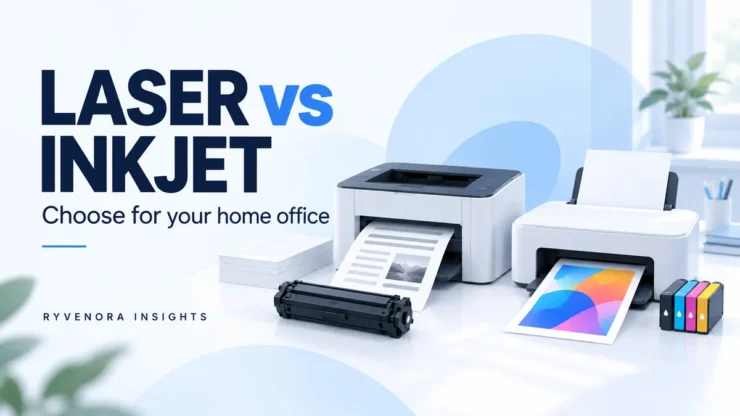
Brother’s technology overview explains that inkjets use dye or pigment ink, while laser printers use toner. It positions inkjet around colour documents and photos, and laser around document output. Treat that as an initial direction; it does not prove that every laser is faster or every inkjet is cheaper.
| Type to compare | Useful starting situation | Question before purchase |
|---|---|---|
| Monochrome laser | Black text is the main requirement. | Will occasional colour work be handled elsewhere? |
| Colour laser | Office colour documents are essential. | What does replacing the complete toner set cost? |
| Cartridge inkjet | Colour or photo capability matters. | What are replacement yields, cartridge arrangements and maintenance instructions? |
| Refillable ink-tank inkjet | You expect regular printing and want to evaluate bulk ink economics. | Will your usage justify the purchase cost and maintenance commitment? |
An ink tank is still an inkjet. It changes how ink is supplied, not the need to evaluate printhead care. Epson’s ink-bottle yield guidance says infrequent printing, settings and image content can affect yields; maintenance uses ink, and some included ink is used during startup.
For a concrete maintenance example, the Epson ET-3850 series manual distinguishes nozzle checks, normal head cleaning and Power Cleaning, which consumes more ink. Read the corresponding manual for your shortlisted model. Avoid assuming every printer has the same cleaning schedule, maintenance box or recovery procedure.
“Years of ink” depends on assumed use. “Duplex” may describe printing only. “Wireless” does not tell you whether your preferred computer and scanning workflow are supported. Translate each claim into a feature you can verify.
03 / Read page yields as comparison inputs
A declared page yield is a result under specified conditions, not a promise that your cartridge will print that many invoices or photos. HP’s inkjet yield explanation describes continuous test printing and says actual output varies with document content, printing frequency and setup ink. It also notes that some included introductory cartridges have lower yields than replacements.
The standards have limited scopes. ISO/IEC 24711 addresses ink-cartridge yield on plain paper and does not establish print quality or reliability. ISO/IEC 19752 addresses monochrome toner-cartridge yield; it does not directly measure complete cost per page.
For each model, save the supply part numbers and the footnotes explaining the stated yield. Distinguish included supplies from standard and high-yield replacements. Check whether a colour figure describes individual colours, an average or a stated set methodology.
Do not divide a black cartridge price by a colour yield, or use an office-document yield to predict full-page photo costs. Keep the comparison consistent and leave room in the budget for your real output differing from the test pattern.
04 / Estimate ownership cost with your own prices
Build a comparison for a fixed period, such as three years. Include the printer, supplies purchased during that period, separately replaced maintenance parts, paper and any services you actually choose. Check the maintenance-parts list rather than assuming ink or toner is the only consumable.
For a simple replacement-supply comparison, divide price by declared yield. A hypothetical $60 supply rated for 3,000 pages produces a planning figure of $0.02 per page. That calculation excludes the printer, paper, maintenance, waste and differences between declared and actual yield.
| Invented planning input | Printer A | Printer B |
|---|---|---|
| Purchase cost | $180 | $300 |
| Assumed replacement-supply cost per page | $0.06 | $0.02 |
| Assumed pages over three years | 3,600 | 3,600 |
| Supply cost under those assumptions | $216 | $72 |
| Purchase plus modeled supply use | $396 | $372 |
All figures are invented USD examples, not prices or performance claims for laser or inkjet products. This simplified model deliberately excludes included supplies, taxes, maintenance, paper and electricity. The $120 purchase premium is offset after 3,000 pages at an assumed saving of $0.04 per page. At 1,000 pages, it would not be offset.
For a real cash budget, account for included supplies first, then count whole replacements you must buy. You may pay for a full cartridge near the end of the period while leaving some unused capacity. Compare local prices in the US, UK, Canada or Australia using the correct regional model and supplies; do not assume similarly named printers share cartridges.
If a subscription interests you, read its actual page allowance, rollover, overage, cancellation and supply-use terms. Compare that agreement with buying supplies yourself. A plan’s value depends on your printing pattern, not just its advertised monthly entry price.
05 / Separate printing from scanning requirements
List these features separately: automatic two-sided printing, a flatbed scanner, an automatic document feeder (ADF), and automatic two-sided scanning. An ADF can help with stacks of originals, but verify how it handles both sides.
Brother’s model-specific duplex-copy instructions illustrate the distinction: the covered machine can produce a two-sided copy but cannot automatically scan both sides of an original. This is an example of why a “duplex” label needs context, not a limitation of all Brother printers.
If signed multi-page documents are common, ask for a demonstration using a two-sided original and your intended scan destination. Check page order, orientation and whether blank-page removal hides anything you need. A colour scanner and colour printing are separate specifications; verify each.
For paper handling, check Letter or A4 support, envelopes, label stock, paper weight and automatic-duplex restrictions. Brother’s special-paper guidance for the listed laser models warns against inkjet paper. Use media approved for the exact machine and trial a small pack before buying in bulk.
06 / Verify connections and physical fit
Check the support page against your exact operating system and computer architecture. Confirm printing and scanning independently. If you want USB, Ethernet, phone printing or operation without a particular cloud service, verify those requirements before checkout rather than inferring them from a wireless logo.
Measure the operating footprint with trays extended and scanner lid open. Leave the clearance specified in the manual and enough room to remove jams and replace supplies. Check where output lands and whether household members can reach it comfortably.
Compare first-page time and sustained speed for your actual jobs. For one-page forms, the wait for the first sheet may matter more than a long-run pages-per-minute claim. For a stack of reports, check duplex speed as well. Use the model’s recommended monthly volume when available; HP’s buying guide distinguishes that from the maximum duty-cycle figure.
If power backup is part of your desk plan, check the printer and UPS manufacturers’ compatibility and loading instructions. Our home office UPS sizing guide explains why watts, runtime and shutdown needs deserve separate checks.
07 / Check the purchase, then verify the first jobs
- Save the exact regional model number and its support/manual links.
- Price compatible replacement supplies and identify any separate maintenance items.
- Confirm included supplies and distinguish their yields from replacements.
- Verify automatic printing and scanning features separately.
- Check the paper sizes, media, connections and software you need.
- Read the return conditions and keep packaging until acceptance checks are complete.
During setup, follow the manufacturer’s installation and maintenance instructions. Print a representative text document, a colour page if relevant, and a two-sided job. Scan a short stack with content on both sides if that is part of your workflow. These are suggested acceptance checks; no printer was hands-on tested for this guide.
Keep a brief record of supplies bought and approximate pages printed. Your own running-cost history will be more useful for the next purchase than assuming the original yield estimate was exact.
Frequently asked questions
Is laser always cheaper than inkjet?
No. Compare complete ownership cost for specific models, including ink tanks, included supplies and maintenance. Low printing volume may leave little opportunity to recover a higher purchase price.
Should I buy an ink tank if I print rarely?
Check the maintenance guidance and whether the purchase premium makes sense for your expected output. A large included ink supply alone does not establish value for occasional use.
Does automatic duplex mean two-sided scanning?
No. Verify automatic duplex printing and automatic duplex scanning separately. Ask how the document feeder handles the reverse side of an original.
Can a monochrome printer still fit an office that sometimes needs colour?
Yes, if you are comfortable arranging occasional colour output elsewhere. Include that cost and turnaround time when comparing it with owning a colour printer.
Collect two model specifications and their replacement-supply prices. Compare them against your page mix, idle periods, scanning needs and a realistic ownership period before choosing.
Sources and editorial notes
Primary documentation was checked on 28 October 2026. Manufacturer examples illustrate specific claims and do not endorse a product. Features, supplies and service terms must be checked for the exact regional model. Cost examples are hypothetical; this guide reports no hands-on tests or benchmarks.




Add comment