Ryvenora Insights
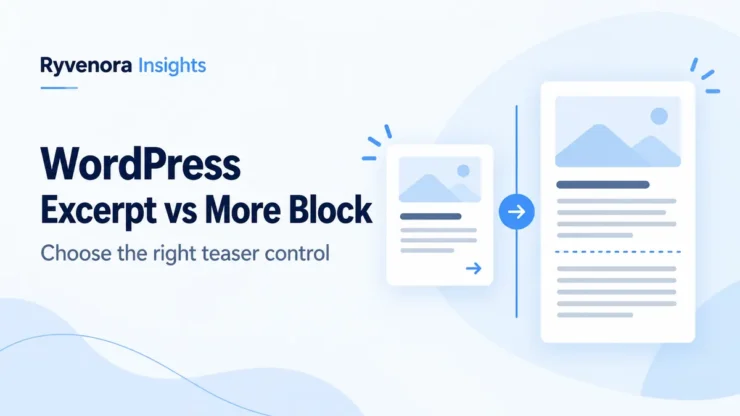
Ryvenora Insights cover reading WordPress Excerpt vs More Block, with conceptual summary and article cards on a pale blue background.
Home » WordPress Excerpt vs More Block: Fix Your Post Teasers

WordPress Excerpt vs More Block: Fix Your Post Teasers

Choose between WordPress excerpts, the More block and Read More links. Diagnose unexpected teaser text and check the complete route from listing to article.

WordPress & Web Development · Publishing · Teaser controls

Use a manual excerpt when you want a separate summary for post listings that display excerpts. Use the More block when a listing displays post content and you want an intentional stopping point. First identify what your theme or listing block renders: these controls do different jobs.

A carefully written summary can appear unchanged on one page and be absent from another. That does not automatically mean WordPress failed to save it. The post supplies content, while the listing determines how visitors see that content.

Three similar names, three different jobs

The excerpt field stores summary text. The More block marks a break in the article body. The Read More block provides a link in a post listing. Identify the control before changing the copy.

Compare an excerpt, a break and a link

WordPress’s excerpt documentation describes an optional summary associated with a post. Its More block guide describes a content break used by compatible full-content listings. The separate Read More block links visitors from a Query Loop to the relevant post.

ControlWhat you supplyWhen to investigate it
Manual excerptA separate summary of the article.A card needs concise copy different from the opening paragraph.
More blockA chosen break in the article body.A compatible content listing needs to stop after an introduction.
Read More blockA link to the listed post.A Query Loop needs a clearer route to the full article.

Do not diagnose by the visible words “read more” alone. A theme can style links similarly even when different mechanisms produced them. Start with the listing’s structure and the post’s saved fields.

For an author, the useful question is: “Am I changing the summary, where the body stops, or the link readers click?” For a site editor, add a second question: “Which component displays this particular card?”

Write the summary as a separate editorial task

Open the post and look for the Excerpt control in its post settings. The exact panel position can vary with the editor interface. Enter a concise summary, save the post, and reopen that control to confirm the text is stored.

In the Classic Editor, WordPress’s excerpt guide points to Screen Options when the editing box is missing. Distinguish the interface for editing a post from the template that displays it.

A useful summary states the problem, the scope and the benefit of reading. It should help someone decide whether the article answers their question without requiring the full introduction.

  • Name the decision: explain what the reader will be able to choose or do.
  • State the scope: specify the platform, audience or situation where it matters.
  • Make a defensible promise: describe what the article actually contains.
  • Remove filler: avoid using the entire space to announce that the topic is important.

Hypothetical example: for a guide about preparing a client project handover, “Build a client handover checklist covering files, approvals, account ownership and unfinished work” is more useful than “Welcome to our latest article about an important business topic.” These are sample editorial choices, not performance-tested copy.

Review the summary whenever the article’s scope changes. A rewritten guide may no longer fulfill the promise in an old card. Treat the summary as part of the article’s maintained content, not a one-time publishing formality.

Place a More block where the introduction can stand alone

For a compatible listing that displays post content, place the More block after the intended introduction. In the block editor, type /more in a new paragraph and select the block. WordPress permits one More block per post and lets you customize its link text.

The official guide says that an excerpt-based archive ignores the More block. Moving that marker repeatedly will therefore not solve a problem caused by the wrong display mechanism.

The block also has an option to hide the content before it on the full-content page. Leave that option alone unless you deliberately want that result and have checked the reader’s route.

Choose the stopping point for meaning. The preview should establish enough context to make the following link useful. Avoid ending between a condition and its explanation or leaving the reader with a claim whose qualification appears only after the break.

Keep the full article coherent

Read the introduction and the first section together after changing the break. A good listing preview should not require sacrificing the clarity of the article itself.

You do not need a More block merely because a theme already displays a short card. Confirm the existing behavior first, then choose the smallest change that solves the actual problem.

Identify the layer that displays the card

In a block-based listing, WordPress’s Excerpt block displays a post summary, commonly inside a Query Loop. It can also include an optional link to the full post. Its documentation describes a 55-word fallback when the post has no excerpt; inspect the block’s settings and actual output rather than assuming every listing uses that presentation.

The Read More block is a separate link component for the Query Loop. If a listing has both an excerpt’s optional link and a separate link block, review whether the resulting navigation is useful or unnecessarily repeated.

For a classic theme, the WordPress developer reference distinguishes templates that display excerpts with the_excerpt() from content displayed with the_content(). The automatic excerpt normally removes tags and shortcodes and defaults to 55 words. Themes and filters can change the result.

These function names are clues for a developer reviewing a template, not an instruction to edit a live theme file as a first troubleshooting step. If a developer maintains your site, send the affected URL, post title, saved summary and expected result.

Check each surface separately: the main posts page, a category archive, search results and a custom homepage section may not share a layout. A successful change on one surface is useful evidence, but it does not prove how the others work.

Diagnose the mismatch before rewriting the article

Use one representative post and one affected listing. Record what you expect, what is saved, and what the visitor actually sees. This keeps a local display issue from turning into a broad redesign.

SymptomFirst checkUseful next step
The opening paragraph appears instead of the summaryWas the manual excerpt saved, and does this listing use it?Compare another excerpt-based surface before changing the introduction.
Moving the More block has no visible effectDoes the listing display excerpts?Inspect the excerpt field or listing configuration.
The summary is present but too shortAre the saved text and displayed text different?Review the listing’s length or display rules.
Two continuation links appearWhich components supply each link?Review the listing structure instead of deleting article text.
The full article lacks its expected openingIs the More block’s hide option enabled?Check the direct article and the route from the listing.

Do not confuse a feed preference with a universal card setting. The Reading Settings documentation defines “For each article in a feed, show” as controlling full text versus excerpts in feeds. It is not a reliable way to diagnose every homepage or archive layout.

If a saved change appears old, first confirm the correct post and URL. Then investigate whether the page is showing a cached copy through the site’s established process. Avoid changing several controls at once; you will lose the evidence of which one mattered.

Keep screenshots or short notes of the before-and-after result when coordinating with someone else. “Category archive still shows the first paragraph” is actionable. “Excerpts are broken everywhere” is harder to investigate when only one layout was checked.

Example: an editor wants concise homepage summaries

Hypothetical scenario: a small publication wants each homepage card to explain a guide’s practical outcome. Its article introductions are deliberately longer and include context that is unnecessary on the card.

The editor writes a separate summary for one representative post and verifies that it was saved. If the homepage displays that summary, the team can continue the same editorial process for other posts. If it does not, they identify the homepage’s listing component before rewriting dozens of introductions.

Meanwhile, a category page may use another layout. The editor records that difference and asks the person responsible for site design to assess it separately. The team does not assume that moving a content break will control every card.

The publishing brief now includes a summary review and a link check. Writers prepare the text; the editor confirms the displayed result. For teams assigning those responsibilities, our WordPress Author vs Contributor guide explains the broader permissions decision.

No traffic increase or click-through improvement is assumed in this example. The immediate success criterion is simpler: the intended summary appears in the intended place and leads to a complete, readable article.

Review the complete reader journey

A teaser is one part of a route. Check the title, summary, link and destination together. A clear card is less useful if it leads to the wrong post or makes a promise the article does not fulfill.

  • Confirm that the summary describes the article’s current scope.
  • Check the affected listing on a narrow and a wide screen.
  • Follow the continuation link and confirm the correct destination.
  • Read the full article’s opening for missing or duplicated context.
  • Compare other important listing surfaces before declaring the issue resolved.
  • Record any layout difference that requires a separate design decision.

Keep editorial changes separate from a site-wide layout decision. A summary can be improved per post. Replacing the component used across an archive has a broader effect and deserves its own review.

Once the arrangement works, add a short note to your publishing checklist stating which surfaces use manual summaries and who verifies them. That gives future writers a repeatable process without requiring them to understand the site’s template code.

Frequently asked questions

Do I need both an excerpt and a More block?

Only if different intended displays need them. Choose based on the listing mechanism rather than adding both automatically.

Why does my More block not change the homepage card?

Check whether that card displays an excerpt or uses another listing rule. Identify the display layer before moving the content break again.

Are More and Read More the same block?

No. More marks a content break; Read More supplies a post link in a Query Loop.

Should every summary repeat the first paragraph?

It can, but a separate summary may communicate the article’s scope more efficiently. Keep the card accurate and the full introduction useful.

Sources and scope

Official WordPress documentation was checked on October 27, 2026 and is linked near the relevant explanations. Theme and block settings affect the final presentation. The publishing scenarios are hypothetical; this guide does not claim hands-on testing of a particular theme or measured audience results.

Add comment