

Technology / Home office storage / Buying guide
Choose an external drive when you want a straightforward backup destination for one computer. Consider a NAS when several computers need a shared, regularly available destination and someone can maintain it. Neither purchase creates a complete backup plan by itself: you still need backup software, older versions, a separate recovery copy, and a successful restore test.
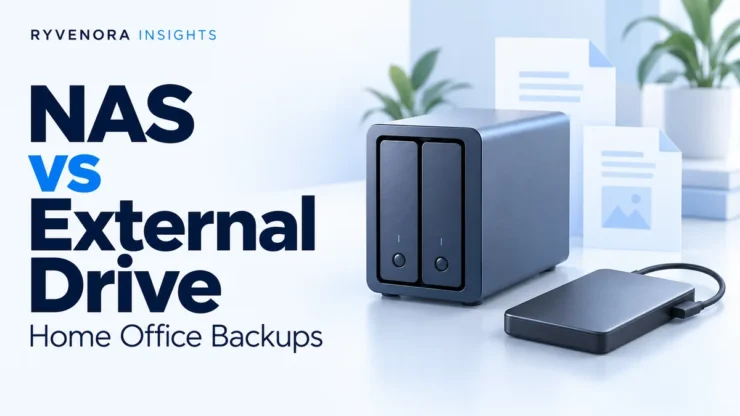
A network-attached storage device is a small server that holds drives and serves files over your network. An external hard drive connects directly to a computer, usually by USB. An external SSD fills the same direct-connection role with different hardware tradeoffs; this comparison focuses on the backup workflow rather than a particular drive model.
If important files currently exist in only one place, establishing a verified second copy is the immediate priority. Do not postpone that work while designing a more elaborate storage system. A NAS can be a later improvement to convenience rather than the starting requirement.
NAS vs external drive: compare the work involved
The deciding question is often whether the backup destination will actually be available when your computers need it. A USB drive left in a drawer cannot receive tonight’s scheduled backup. A NAS can remain available on the local network, but the computer must still be connected, running the relevant backup job, and able to authenticate.
| Decision | External drive | NAS |
|---|---|---|
| Connection | Directly attached to the computer receiving or creating the backup. | Accessed across the local network through supported services. |
| Several computers | Separate drives or a deliberate rotation routine keep ownership clear. | A central destination can serve several machines with separate accounts and allocations. |
| Automation | Supported by backup software while the drive is connected. | Supported when the NAS, network, and backup client are available and configured. |
| Maintenance | Check backup status, drive condition, capacity, and recovery access. | Also maintain the storage pool, NAS operating system, apps, accounts, and network access. |
| Physical separation | Portable enough to disconnect and rotate to another location. | Usually stays in one place; arrange another destination for its backup. |
| What to price | Drive, any adapter, backup software, and additional recovery copies. | Enclosure, compatible drives, networking, software, power, and another backup destination. |
Do not accept “external means manual” as a buying argument. Apple’s Time Machine guidance explicitly supports automatic backups to connected external storage. The practical limitation is maintaining the connection and checking that jobs finish.
Separate storage, RAID, snapshots, and backup
A shared folder can become your only copy
Moving a project from a laptop onto a NAS to free laptop space changes where the working file lives. It does not leave a backup on the laptop. The same applies when you move a photo library onto an external drive and delete the original.
Before purchasing, write down which device will hold the working files and which will hold recoverable copies. If the NAS becomes primary storage, it needs its own backup job. If it receives backups from computers, decide how those backup sets themselves will survive loss of the NAS.
RAID addresses a narrower problem
A redundant RAID configuration can tolerate specified drive failures; the protection depends on the selected layout and current array condition. Some layouts provide no redundancy. QNAP’s explanation of RAID versus backup identifies accidental deletion, corruption, theft, and disasters as risks beyond drive-failure redundancy.
A mirrored pair inside one enclosure therefore is not two independent backups. It also is not a history of your documents. If a mistaken change is written to the live storage, redundant drives can faithfully preserve that mistaken state.
Snapshots need a separate failure boundary
Where supported and configured, snapshots can provide earlier states for convenient recovery. Check the exact model, file system, retention rules, and permissions. A snapshot kept only on the same storage system still depends on that system surviving. Treat it as an additional recovery option rather than the off-site copy.
Check the backup application before buying storage
Windows: distinguish file history from full-machine recovery
Microsoft documents File History as automatic versioned protection for personal files and libraries, using an external drive or network location. Folders outside those libraries need deliberate inclusion. Buying a NAS does not automatically put every folder into that backup.
List what you need to restore: documents, application data, settings, or an entire bootable working environment. File-version recovery and full-machine recovery are different requirements. If you choose another backup application, verify its current operating-system support, network-destination support, licensing, and recovery-media requirements before buying the destination.
Mac: require explicit Time Machine over SMB support
For network backups, Apple specifies a NAS that supports Time Machine over SMB. A product advertising generic file sharing is not enough evidence of that particular workflow. Check its current setup instructions and compatibility with your macOS version.
Apple’s compatibility guidance, published September 14, 2026, says AFP-based NAS transfers and Time Machine backups are unsupported in macOS 27 or later. Avoid planning a new setup around old AFP-only instructions.
For directly connected Time Machine storage, follow the backup application’s formatting requirements. Our Windows and Mac external-drive formatting guide explains why an exFAT exchange disk and a dedicated Mac backup disk serve different purposes. Do not erase an existing disk until its wanted contents have another verified home.
Plan usable capacity, the network path, and total cost
Buy space for history, not just today’s files
Count the data actually selected for protection across all computers. Add expected growth, retained versions, and room for the backup software’s operation. Frequently changing large project files can consume version space differently from mostly unchanged documents. There is no universal capacity multiplier that guarantees a particular retention period.
For a directly connected Mac backup, Apple recommends a destination with at least twice the Mac’s storage capacity. Treat that as its Time Machine guidance, not a universal sizing rule for every NAS workload.
NAS drive totals can be misleading because redundancy and system overhead reduce usable space. Synology’s RAID calculator notes that results are estimates, actual volume space differs, and compatible drives, RAID options, and volume limits vary by model. Check the exact enclosure’s compatibility list before ordering disks.
Do not buy a faster port in isolation
A NAS backup travels through the computer’s connection, any Wi-Fi link, switches, cabling, the NAS interface, and the storage system. A faster NAS network port cannot remove a slower link elsewhere. A direct-drive job likewise depends on the computer port, cable, adapter, drive, and software.
Compare candidate equipment against your acceptable backup window and restore time. Ask whether an initial wired backup is practical, where the NAS will sit, and whether several computers will compete for the same connection. Product port labels are not measured backup speeds.
Compare complete baskets
Ask for a quote that includes installed drives, required software licences, cables or adapters, any network upgrade, and the independent backup destination. Check whether a NAS is sold diskless. Add ongoing cloud charges where applicable, and allow time for updates and failed-job investigation.
A lower enclosure price alone cannot establish the lower operating cost. Equally, features such as media streaming or containers have no backup value if you will not use them. Choose around the recovery job.
Keep a recovery copy beyond the main device
Synology describes the 3-2-1 approach as three copies across two media with one off-site. Its practical point is separation: a local computer and NAS in the same room can both be lost in a fire or theft. Count actual recoverable copies rather than drive bays or partitions.
An unplugged drive beside the computer is offline but shares the building’s physical risks. A remotely stored copy may be off-site while still reachable through compromised credentials. Choose protection for both problems rather than treating either label as a complete guarantee.
CISA’s ransomware guidance recommends offline, encrypted backups and regular recovery testing. A drive connected with write access all day is not an offline copy simply because it uses USB. After a completed job, use the supported eject process before disconnecting a removable backup.
A NAS also adds a system to secure. QNAP’s security guidance recommends avoiding direct internet exposure, disabling NAS-management port forwarding and UPnP forwarding, and updating firmware and applications. For a local-only backup setup, remote access need not be part of the design.
Give users only the access their backup workflow needs. Store recovery credentials and encryption keys somewhere you can reach after losing the main computer. Encryption without a recoverable key can prevent your own restore as effectively as anyone else’s access.
Run a small backup and restore trial first
Before retiring an older backup, prove the replacement workflow with expendable sample files. This suggested trial checks practical recovery; it is not a hardware reliability certification.
- Define the scope. Select representative folders, including an important non-default location. Confirm that the application lists them for backup.
- Complete the first job. Review its completion time, warnings, selected destination, and retained versions. A visible network share alone proves none of these.
- Create two versions. Back up a sample document, edit it, and let another backup complete.
- Restore to another folder. Recover the earlier version without overwriting the working file. Open it and confirm the expected content.
- Check loss of access. Identify how to reconnect from a replacement computer, obtain the restore software, and unlock encrypted data.
- Test the independent copy. Recover a sample from the off-site or rotated destination too, then record where the instructions and keys are kept.
Set a review interval and check the last successful backup after changes to passwords, routers, computers, or storage. Decide how much work you can afford to lose between backups and how long you can wait for recovery; those answers should drive the schedule and restore plan.
Choose a setup you can keep running
| Hypothetical situation | Reasonable starting choice | Follow-through |
|---|---|---|
| One laptop, modest document collection, no storage administrator. | External drive with scheduled versioned backup software. | Connect it consistently, verify jobs, and arrange a protected separate copy. |
| Several computers that usually work on the same local network. | NAS with supported backup clients and separate destinations or allocations. | Assign a maintenance owner and back up the NAS to another destination. |
| Large project library lives primarily on the NAS. | NAS for working storage plus an independent backup system. | Protect the original library, not merely the computers that access it. |
| Laptop spends most days away from the home network. | Portable backup storage or an appropriately managed remote backup service. | Check that the chosen destination is reachable during actual working hours. |
These are planning examples, not tested product rankings. A NAS earns its place when shared availability solves a recurring problem and its upkeep is realistic. An external drive earns its place when the simpler routine is one you will reliably follow. Many useful designs combine them.
Frequently asked questions
Is a two-bay NAS safer than one external drive?
It depends on configuration and the event you need to survive. A suitable redundant array can help with a drive failure, but deletion, theft, malware, and loss of the enclosure still require other protection. Compare complete recovery plans rather than bay counts.
Can an external hard drive back up automatically?
Yes, when supported backup software is configured and the destination is connected. The important checks are whether jobs run, what files and versions they include, and whether you can restore them.
Do I need internet access to back up to a NAS?
A local-network backup does not inherently require sending files over the internet. Your chosen software may have account, licensing, or update requirements. Remote backup and off-site replication are separate capabilities to verify.
Can a NAS and external drive work together?
Yes, if the NAS and backup application support that destination. A separate drive can hold another copy of NAS data. Verify the required format and restore tools, and plan when the drive will be disconnected or rotated off-site.
Write down the working-file location, backup application, protected folders, retention goal, independent destination, restore procedure, and maintenance owner. Then buy storage that supports that plan.
Sources and editorial notes
Primary documentation was checked on October 24, 2026. Apple, Microsoft, Synology, QNAP, and CISA sources are linked beside the relevant claims. Model compatibility, licences, and available backup features must be checked for the exact products selected. The setup examples are hypothetical; no hands-on speed, reliability, or recovery benchmark is claimed.


Add comment