

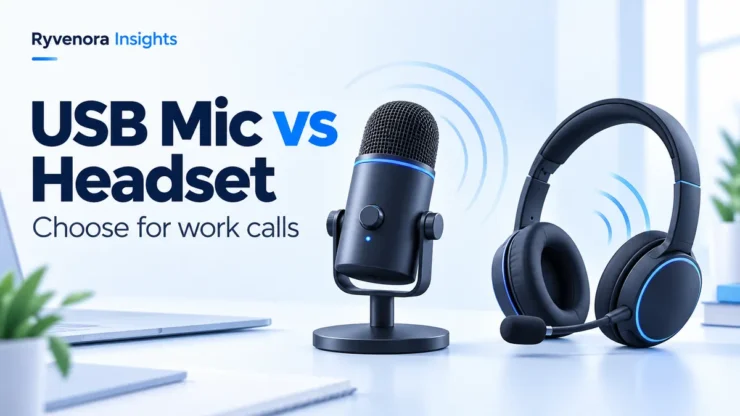
Technology / Home office audio / Buying guide
For frequent work calls, start with a comfortable headset with a boom microphone if you move your head, share a room, or want one device for listening and speaking. Choose a separate USB microphone if you work at a fixed desk, can position it close to your mouth, and also need a flexible setup for recordings.
A larger microphone does not automatically make a meeting clearer. Placement, room noise, the selected audio devices, and how you actually work matter more than the appearance of the equipment. The useful purchase question is: which setup can you keep correctly positioned and use comfortably throughout your normal calls?
Try your existing equipment before replacing it. A headset positioned correctly may solve the problem; a new desktop microphone left behind the keyboard may not. This guide compares setups rather than ranking individual products.
01 / Compare the complete setups
Here, a headset means headphones with a microphone, preferably a boom you can position beside your mouth. A USB microphone means a separate microphone connected to the computer; you still need a way to hear other participants. A USB headset is also a USB audio device, so this is a comparison of physical arrangements, not competing connection standards.
| Decision | Headset with boom mic | Separate USB microphone |
|---|---|---|
| Normal movement | Mic moves with your head when the fit is secure. | You need to remain within a useful speaking position. |
| Listening | Headphones are part of the device. | Plan separate headphones or another suitable output. |
| Desk requirements | No microphone stand; check cable reach. | Needs space for a stand or arm and a usable cable route. |
| Long calls | Assess ear pressure, heat, glasses, and fit. | Allows you to choose listening headphones separately. |
| Recording work | May meet a simple narration requirement; check a sample. | Can suit a dedicated recording position and monitoring workflow. |
| Before buying | Check mic placement, comfort, and app controls. | Check orientation, mounting, headphone output, and mute behavior. |
Neither column guarantees better sound. An inexpensive headset and an expensive studio-style microphone can both be unsuitable if the former hurts after an hour or the latter cannot be placed where you need it.
02 / Check placement before specifications
Start by describing your actual speaking position. Do you lean back while listening, turn toward a second monitor, or stand during presentations? A microphone that sounds acceptable when you lean toward it may become much less useful as soon as you return to your usual posture.
Shure’s microphone-placement guidance explains that a microphone cannot improve the room’s acoustics: moving farther from the speaker increases the importance of reflected speech. Reducing background noise or moving the microphone closer are practical responses when speech is difficult to distinguish.
For a headset
Adjust the headband first, then position the boom according to the exact model’s instructions. Keep the microphone away from direct breath airflow and confirm that it stays in place when you look around. Jabra’s placement guidance, for example, specifies close mouth placement for the noise-cancelling microphone on the supported headset. Use your model’s instructions rather than applying one distance to every design.
For a desktop microphone
Read whether you should speak into the end or the side. Place it where you can speak normally without leaning or blocking your screen. Check whether the supplied stand reaches that position; a low stand at the back of the desk may create a need for an arm or another mount.
With the microphone in place, type a sentence and move the mouse. Listen for distracting clicks or desk bumps. Move the microphone or change its support if those sounds interfere with speech. Do this before deciding that more processing or a more expensive microphone is necessary.
Imagine a worker whose calls sound hollow because a microphone sits beyond the keyboard. Replacing it with another model in the same position may preserve the problem. A closer position or a boom headset is a more useful first experiment. This is a hypothetical example, not a measured comparison.
03 / Separate what you hear from what others hear
“Noise cancelling” can describe different functions. Jabra describes active noise cancellation (ANC) as reducing unwanted sound reaching your ears. That listening feature should not be treated as proof that the microphone removes surrounding voices from the audio sent to colleagues.
Check listening comfort and outgoing speech separately. A headset can make your room feel quieter while still transmitting distractions. Equally, a microphone may deliver intelligible speech while the headphones feel uncomfortable. Your purchase needs to meet both requirements.
With a USB microphone, plan headphones too
Headphones are a sensible starting arrangement because the meeting audio is not playing openly beside the microphone. If you prefer speakers, include that exact arrangement in your call test rather than assuming it will behave like headphones.
Some USB microphones offer direct monitoring through a headphone socket. RØDE’s troubleshooting guidance uses that feature to check whether supported microphones capture audio locally. It also identifies a model without a dedicated headphone output, illustrating why you should verify the feature rather than assume every USB microphone includes it.
Local monitoring is useful, but it does not prove that the meeting app selected the microphone or that another participant receives clear speech. Treat it as one check within the full connection.
04 / Check connections, device selection, and mute controls
Before ordering, list the computer ports you can actually use. Include the webcam, keyboard, external drives, and other desk equipment. Confirm the supplied cable, connector type, operating-system support, and whether a necessary adapter is included.
If everything connects through a dock, test with that dock. For a broader port-planning checklist, see our USB-C dock compatibility guide. Audio compatibility and stability still need their own check with your equipment.
A wired connection avoids adding charging and wireless pairing to your daily routine. Wireless can be useful if you need to move away from the desk; check the permitted connection method, charging routine, and whether the headset can do what you need while connected to your computer.
For Bluetooth headphones, do not judge call suitability from music playback alone. Sony’s computer video-call guidance distinguishes music playback profiles from voice-call profiles and stresses correct speaker and microphone selection. Available names and behavior depend on the device, operating system, and calling app.
Test every mute control you intend to use
A button on a device and the app’s mute button should not be assumed to share the same visible state. In a test call, operate each control separately and confirm what the other end receives. Then check the indicators you will rely on during a real meeting.
If an app cannot access the microphone, investigate permissions before buying hardware. Our Chrome site permissions guide covers browser access alongside operating-system controls.
05 / Budget for the setup you will actually use
Compare complete shopping lists rather than microphone prices. A separate microphone can be a reasonable purchase if you already own comfortable headphones and have a suitable mounting position. If you need headphones, an arm, and adapters too, the comparison changes.
| Item to verify | Headset setup | USB microphone setup |
|---|---|---|
| Listening equipment | Included, but comfort must suit you. | Existing headphones or an additional purchase. |
| Mounting | Fit and boom adjustment. | Suitable stand or arm; check desk clamp space. |
| Connection | Correct plug or supported wireless adapter. | Data connection and any required adapter. |
| Daily upkeep | Cable care or charging; replaceable cushions if needed. | Desk space, cable routing, and stable positioning. |
| Purchase conditions | Return terms for fit and compatibility. | Return terms for compatibility and the full arrangement. |
Check the final local price, taxes, delivery, warranty arrangements, and return conditions in your country. This guide does not use a fixed price threshold: the appropriate spend depends on what you already own and the problem you are solving.
06 / Run the same practical test for either option
Use a short, repeatable script instead of an impression such as “sounds professional.” The goal is clear, consistent conversation during your actual work.
- Select the device in the operating system. In Windows, open Settings → System → Sound → Input, choose the microphone, and use its test controls. Microsoft documents the recording, playback, and input-volume checks. Speak at your normal level.
- Select input and output in the calling app. Confirm both rather than relying on an unspecified default. Zoom provides separate speaker and microphone tests, including recording and replaying speech. Use the equivalent checks in your meeting application.
- Read a realistic sample. Include names, numbers, short pauses, and a longer sentence. Listen for missing words, distortion, and distracting room sound.
- Repeat normal movements. Turn toward another screen, lean back, type briefly, and return to your starting position. Check whether the voice remains understandable.
- Check the receiving end. Use a willing colleague or a suitable test arrangement. Ask whether speech remains clear during ordinary interruptions and whether any echo is audible.
- Test controls and reconnection. Verify hardware mute, app mute, unplugging and reconnecting, and the next meeting’s selected devices. Try a session long enough to judge comfort.
Keep notes on what failed and change one thing at a time: position, input selection, level, or listening arrangement. An app playback test and a real conversation answer different questions; neither should be confused with a laboratory benchmark.
07 / Buy for the constraint you cannot easily change
If you regularly turn, move, or work in a shared space, a comfortable boom headset is a practical starting choice. If you stay in a repeatable position and want independent choices for microphone and headphones, a separate USB microphone is worth considering.
- Choose a headset when consistent placement and a compact setup are priorities.
- Choose a separate microphone when you can provide a suitable position and want a dedicated recording arrangement.
- Keep existing equipment when placement or settings resolve the problem.
- Delay the purchase if you cannot confirm compatibility, comfort, or a usable mounting position.
Save the device names and successful settings with a brief desk checklist. A reliable routine is more useful than a setup that needs to be rediscovered before every client call.
Frequently asked questions
Is a USB microphone always better than a headset?
No. A correctly positioned headset may suit work calls better than a separate microphone that sits too far away or moves out of position relative to your voice. Compare the complete setup under normal working conditions.
Do I need an audio interface for a USB microphone?
A microphone designed to send audio directly over USB connects through its supported USB connection. Check its instructions and system requirements. An XLR-only microphone is a different purchase and normally needs a compatible interface or other audio equipment.
Does ANC mean colleagues will not hear my room?
No. ANC is a listening feature. Verify the microphone’s outgoing speech separately, including surrounding voices and typing, with the calling app you use.
Can I use a USB microphone with my existing headphones?
Often, yes, if the computer and application let you select the required input and output. If you want to plug headphones into the microphone itself, confirm that it has a compatible headphone output and the monitoring features you need.
Sources and editorial notes
Primary documentation was checked on October 27, 2026. Links beside the relevant claims lead to Shure, Jabra, RØDE, Sony, Microsoft, and Zoom. Model-specific guidance is identified as an example, not a universal specification or product endorsement. The desk scenario is hypothetical; this article does not report hands-on product tests or measured sound comparisons.





Add comment