

Technology / Laptop docking / Buying guide
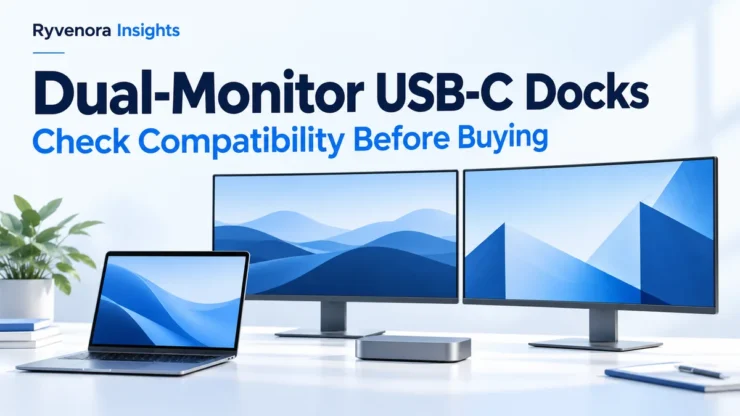
Before buying a USB-C dock for dual monitors, confirm that your exact laptop and operating system support two independent external displays through the dock’s connection method. Then verify both monitors’ resolution and refresh rate at the same time. Two HDMI or DisplayPort sockets on a dock do not, by themselves, prove that your laptop can extend its desktop across both.
The useful purchase is a documented combination: laptop model, port, operating system, dock, cables, and displays. A listing that says “dual 4K” leaves important questions unanswered. This guide helps you resolve them before ordering and check the result during the return period.
Define what “dual monitors” means for your desk
For most office work, the goal is an extended desktop: a spreadsheet on one monitor and reference material on the other. Mirroring shows the same content on both. Both monitors can light up while still failing to provide the extra workspace you wanted.
Microsoft’s multiple-monitor guide distinguishes Duplicate from Extend. On Windows, Windows key + P → Extend selects the latter when the hardware and connection support it.
Write down whether the laptop’s own screen must remain active. “Two external monitors plus the laptop screen” is a three-display requirement. Also note whether you intend to close the lid, because supported configurations can vary with the model and operating conditions.
“Two external 2560 × 1440 monitors at 60 Hz, both extended, laptop screen active, Ethernet and keyboard connected, charging through the dock.” This is a planning example, not a claim that a particular laptop or dock supports it.
Separate requirements from preferences. If one-cable convenience is optional, connecting one screen directly to the laptop and another through an adapter may be worth investigating before buying a larger dock.
Check the laptop before checking the dock
Find the complete laptop model, processor or chip variant, operating system, and the specifications of the port you will use. Similar product names can cover different graphics and display capabilities.
Apple’s MacBook Pro display-support guide makes the dependency explicit: display count depends on the model, resolution, and refresh rate. A supported hub can expose available native display connections; it does not increase the computer’s native maximum.
For a MacBook Air, consult the separate MacBook Air display guide and the specifications for the exact generation. Avoid assuming that a rule remembered from an older Air applies to a newer one, or that all chips with the same family name behave identically.
For a Windows laptop, use its manufacturer’s specification sheet and docking compatibility table. Look for the total active-display limit and whether the built-in screen counts. If the documentation is unclear, give support your precise monitor configuration and ask for written confirmation.
Keep that answer with the order. “Compatible with USB-C laptops” is weaker evidence than confirmation of your model, two extended screens, and the requested simultaneous settings.
Identify how the dock creates its display outputs
USB-C describes the connector shape. For native video, the port needs an appropriate video capability. VESA’s DisplayPort over USB-C explanation describes carrying DisplayPort using Alternate Mode. A data-only port does not gain native DisplayPort output merely because a dock fits.
Manufacturers use several approaches. Plugable’s docking technology guide distinguishes native video from software-driven USB graphics:
| Method | What it does | Buying question |
|---|---|---|
| DisplayPort Alt Mode | Carries a native graphics signal through USB-C. | Does this laptop port provide the required video output? |
| MST | Divides a DisplayPort connection into multiple streams. | Does the host and operating system support independent displays this way? |
| Thunderbolt native video | Carries supported native display connections through a compatible dock. | Does this dock expose the laptop’s available display capability? |
| DisplayLink | Uses software and USB data to drive a compatible graphics chip. | Can you install the software, and do its limitations fit your work? |
These are not interchangeable promises. Some docks combine methods, so identify which output sockets use which path. If software-based graphics is part of the design, evaluate it explicitly rather than discovering the requirement after unpacking.
For a Mac, inspect MST and the actual port arrangement
An MST dock that provides separate desktops on compatible Windows hardware can behave differently on macOS. Plugable’s MST compatibility guidance states that macOS does not support MST for multiple independent extended displays. It also explains that MST needs suitable host video capability and remains subject to graphics limits.
This does not mean Macs cannot use two monitors. It means the connection architecture must match the Mac. A native Thunderbolt setup within the model’s display limit and a DisplayLink setup are different ways of approaching that requirement.
Dell provides a concrete example in its Thunderbolt dock guidance for Apple hosts. For the covered docks, its dual-monitor instructions use specific Thunderbolt and video-output combinations to avoid the MST limitation.
Follow the diagram for your exact dock rather than assuming two neighboring HDMI or DisplayPort outputs are equivalent to the recommended pair. A Thunderbolt dock can contain an MST branch internally; the name on its box does not settle which sockets to use.
If your intended configuration exceeds the laptop’s native display support, do not assume a more expensive native dock fixes it. Investigate a documented USB graphics option or revise the number of displays. Ask the seller which technology is responsible for each additional screen.
Verify both monitors’ settings together
Read the dock’s display matrix rather than only its headline maximum. One output at a high resolution is not evidence that two outputs can run at that setting simultaneously.
Ask for the exact pair: resolution, refresh rate, operating system, host connection, and output sockets. Where the specification requires Display Stream Compression or a particular DisplayPort capability, confirm the host meets that condition. Plugable’s MST reference explains that available bandwidth and host capabilities affect the result.
Keep these questions in a short purchase record:
- Are both screens extended rather than mirrored?
- What resolution and refresh rate does each screen use simultaneously?
- Can the laptop screen remain on?
- Which exact dock sockets and cables must be used?
- Are there additional requirements for color, HDR, or other display features you need?
For example, a hypothetical buyer who needs two 4K screens at 60 Hz should request that precise combination. A response saying “4K supported” is incomplete. If a feature is not documented, treat it as unresolved rather than filling the gap with a favorable assumption.
For gaming, demanding graphics work, or color-critical production, request workflow-specific confirmation. A dock suitable for browser windows and spreadsheets may not meet every requirement of those workloads.
Review software permissions, charging, and the host cable
DisplayLink needs an installation plan
DisplayLink’s macOS setup guide says DisplayLink Manager requires Screen Recording permission to access the pixels used for connected displays. Review this requirement with IT before buying for a managed work computer. Follow the current vendor instructions for installation, permissions, and background operation.
Also check application compatibility. DisplayLink’s protected-content guidance documents that some protected video may fail on macOS while DisplayLink screens are connected, potentially affecting all screens. A working desktop does not prove that every media application will work.
Check power delivered to the laptop
Compare the dock’s host-charging specification with your laptop’s requirements. The power supply’s total rating is not the same as the amount delivered to the computer, and supported charging can vary by host.
For example, Dell’s WD25Z specifications distinguish a 180 W power supply from host delivery listed up to 130 W for Dell systems and 96 W for non-Dell systems. This illustrates why the relevant figure is host power, not a product recommendation.
If the dock cannot meet your laptop’s supported charging requirement, check whether using the original charger separately is an approved option. One-cable convenience should not be assumed from the presence of a charging socket.
Keep the intended cable in the plan
Use the supplied host cable or an explicitly suitable replacement. For cable power, speed, and protocol selection, see our USB-C vs Thunderbolt cable guide. Record the required cable length and avoid adding unverified extension leads to a setup you have not yet validated.
Test the whole desk during the return period
Start with the documented configuration and only the essential devices. Then add peripherals individually. A repeatable test is more informative than moving several cables at once.
- Connect dock power and the recommended host cable.
- Connect each monitor to its specified output and select the correct monitor input.
- Confirm the operating system recognizes separate screens, then select extended mode.
- Check each screen’s active resolution and refresh rate.
- Move different application windows onto the two external screens.
- Test charging, keyboard, Ethernet, and other required peripherals.
- Check sleep, wake, disconnect, and reconnect behavior with your ordinary workflow.
If a monitor is blank or restricted, test it directly on the laptop where possible. Apple’s external-display troubleshooting guide recommends direct connection when investigating a hub or dock and notes that cables, adapters, and supported settings can limit output.
| Symptom | Investigate first |
|---|---|
| Both monitors show identical content | Duplicate mode, MST behavior on macOS, and the dock’s required port arrangement. |
| Only one monitor works | Native display count, software requirements, monitor input, and cable path. |
| Both work only at reduced settings | The simultaneous display matrix and host bandwidth requirements. |
| Desktop works but protected video is black | The USB graphics vendor’s application and protected-content limitations. |
| Laptop charging is insufficient | Host power output and the laptop’s approved charging configuration. |
Keep a note of the working connection map and settings. If the documented combination does not work, send that precise record to support. It gives them a clearer problem to solve than “dual monitors do not work” and helps you decide whether to keep or return the dock.
Frequently asked questions
Does two HDMI ports mean two extended desktops?
No. The host, operating system, and dock architecture must support independent outputs in that configuration. Confirm extended mode explicitly.
Will a Thunderbolt dock increase my Mac’s native monitor limit?
No. It can expose supported native connections, but the Mac’s specifications still set its native display limit. Software-based USB graphics is a different approach with its own requirements.
Is DisplayLink the same as DisplayPort?
No. DisplayLink is software-driven USB graphics. DisplayPort is a display connection technology, including use through suitable USB-C ports.
Can I buy one dock for Windows and Mac?
Possibly, but verify each laptop and operating-system configuration separately. Identical sockets do not guarantee identical display behavior.
Sources and scope
Primary manufacturer and standards-body documentation checked on 25 October 2026. This is a compatibility checklist, not a dock ranking or a claim of hands-on testing. Examples labeled hypothetical are planning exercises. Verify current support for the exact laptop, dock revision, operating system, and monitor combination before purchase.


Add comment