

WordPress performance / Elementor / Practical guide
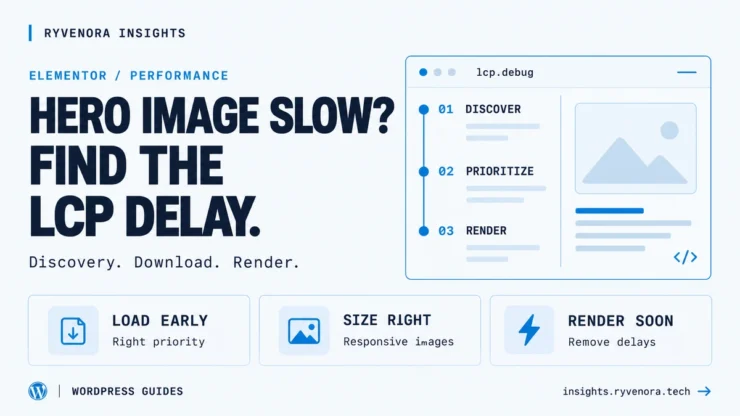
To fix a slow Elementor hero image, first confirm it is the page’s Largest Contentful Paint element. Then remove lazy loading from that image, check its loading priority, serve an appropriate image size, and investigate anything that keeps it hidden after the download finishes.
A smaller WebP file can help. But if your hero waits for a stylesheet, a lazy-loading script, or an entrance animation, compression alone leaves the main problem untouched. This guide shows you how to find the delay before changing settings.
- Identify the actual LCP element on mobile and desktop.
- Enable Elementor’s Optimized Image Loading and inspect the public page.
- Keep the LCP image out of lazy loading; prioritize that image selectively.
- Check responsive image dimensions, background-image discovery, and rendering delays.
- Retest under consistent conditions and track the result.
Who this is for: WordPress site owners using Elementor who can edit a page and inspect its public frontend. The examples explain browser behavior; they are not a benchmark of a particular hosting provider or a promise of a specific PageSpeed score.
01 / Find the actual LCP element
Largest Contentful Paint measures when the largest eligible image or text block in the visible area is rendered. A wide hero image is a common candidate, but a heading may be the LCP element instead. The candidate can also differ between mobile and desktop layouts.
Google’s LCP guidance defines a good experience as 2.5 seconds or less at the 75th percentile of visits, with mobile and desktop assessed separately. Improving LCP helps loading performance; a good LCP result alone does not mean every Core Web Vital passes.
- Open PageSpeed Insights and test the public URL.
- Check mobile and desktop separately. In the diagnostic results, locate the LCP element or LCP-related insights; labels vary with Lighthouse versions.
- Record whether the element is an image, a CSS background, or text.
- For a closer look, record a page load in Chrome DevTools’ Performance panel and inspect the LCP event and associated element.
Prioritize the text’s rendering path: fonts, CSS, visibility, and server response. Optimizing an unrelated hero image may reduce bandwidth without addressing the measured LCP delay.
02 / Locate the delay before choosing a fix
For an image-based LCP, separate the wait into four parts. Google’s LCP breakdown insight helps show which part deserves attention.
| Where time goes | What it means | First investigation |
|---|---|---|
| Time to First Byte | The browser is waiting for the document response. | Origin response, redirects, and page caching. |
| Resource load delay | The document has started arriving, but the image request starts late. | Lazy loading, CSS discovery, request priority. |
| Resource load duration | The image request itself takes a long time. | Transferred bytes, dimensions, network delivery. |
| Element render delay | The image is available, but it has not painted as LCP. | Visibility effects, blocking resources, main-thread work. |
For example, if the image request finishes early while the hero stays invisible, exporting an even smaller file is unlikely to remove the remaining wait. If the request starts late, inspect how the browser discovers it.
When the document response is the bottleneck, review hosting and origin caching first. Our Cloudflare Cache Rules for WordPress guide explains cache boundaries and private-page exclusions. CDN static-file caching and WordPress HTML caching address different parts of delivery.
03 / Check Elementor’s image settings and lazy loading
Elementor’s current Optimized Image Loading documentation gives this path:
Elementor → Editor → Settings → Performance
Optimized Image Loading → Enable
Save Changes
Older versions may arrange the menus differently. Elementor describes this feature as prioritizing important images while lazy-loading images below the fold. Its performance feature reference also documents high fetch priority for LCP images.
After saving, inspect the logged-out public page. A setting being enabled does not prove that the browser received the intended markup, especially when another optimization plugin rewrites images.
- The actual LCP image should not have
loading="lazy". - For an image element, check that the usable URL appears in
srcorsrcset, rather than only in a script-dependentdata-src. - Check whether the important image receives
fetchpriority="high". Avoid giving every image high priority. - In DevTools’ Network panel, confirm that the expected image request begins early.
Native lazy-loading guidance distinguishes two controls: loading="eager" avoids lazy deferral, while fetchpriority="high" is a separate scheduling hint. Eager loading does not automatically mean high network priority.
If a performance plugin still lazy-loads the hero, use its documented exclusion control for that image or selector. Keep lazy loading for suitable images farther down the page. Recheck the final HTML after clearing caches.
04 / Serve the right image size
A hero displayed at 720 CSS pixels wide does not automatically need a 4,000-pixel original. On a screen with a device pixel ratio of 2, a 1,440-pixel resource might be appropriate for that layout. Treat those numbers as an example, then check the actual rendered width and visual quality.
In the Elementor Image widget, review the Image Resolution control instead of choosing Full by habit. Reducing the widget’s visual width with CSS does not, by itself, reduce the downloaded file.
Use WordPress’s generated image sizes where suitable. Inspect srcset and sizes, then confirm the selected resource in the Network panel. Google’s responsive image guide explains how these attributes help the browser choose a source.
The following is an illustrative markup target, not code to paste over an Elementor widget. These example files must exist, and the sizes value must match the real layout:
<img
  src="/wp-content/uploads/hero-1440.webp"
  srcset="/wp-content/uploads/hero-720.webp 720w,
          /wp-content/uploads/hero-1440.webp 1440w"
  sizes="(max-width: 767px) 100vw, 720px"
  width="1440"
  height="810"
  loading="eager"
  fetchpriority="high"
  alt="A web developer reviewing a website layout"
>
WebP or AVIF can reduce transferred bytes where supported by your workflow. Compare the result at the size readers will see, particularly around text, faces, and fine detail. There is no universal file-size limit that guarantees good LCP.
Keep width and height information, or an equivalent reserved aspect ratio, to help prevent layout shifts. Write alt text for the image’s purpose; a purely decorative image may need empty alt text rather than a keyword-filled description.
05 / Handle an Elementor background hero carefully
An image in the initial HTML can be discovered by the browser’s preload scanner. A CSS background may require stylesheet processing before its URL is known. Chrome’s LCP request discovery insight focuses on making the important resource discoverable early and avoiding lazy loading.
Elementor’s Lazy Load Background Images feature skips the first background image. However, a header or another background may appear before your hero. Inspect the actual request instead of assuming your hero is automatically excluded.
If the hero communicates meaningful content, an Image widget may be a suitable alternative to a background. Check that the replacement preserves the intended layout, cropping, responsive behavior, and accessibility.
When a targeted preload can help
If the measured LCP background request starts late, a preload in the document’s <head> can expose it earlier. Google’s LCP optimization guide discusses this approach for resources that are otherwise difficult to discover.
<link
  rel="preload"
  as="image"
  href="/wp-content/uploads/hero.webp"
  fetchpriority="high"
>
Use a maintained head-insertion method that can target this page. An HTML widget inside the page body is too late for the intended early discovery. First check that Elementor or another plugin has not already added a preload.
This example assumes the same image URL is used across viewports. If mobile loads a different file, a mismatched preload can download an unused image. Match the real responsive request or omit the manual preload until you can configure it correctly. Do not preload every hero variant.
06 / Remove delays after the image has downloaded
A fast image transfer can still produce a slow LCP. Google’s discussion of common LCP misconceptions explains why reducing image bytes alone may leave other bottlenecks untouched.
If the image is downloaded but appears late, temporarily remove the hero’s entrance effect and compare the public page. Also investigate preloaders or overlays that hide the content, delayed CSS, font dependencies when text is involved, and long main-thread tasks in the performance trace.
| Observation | Useful next check |
|---|---|
| Hero fades in well after the page appears | Remove its entrance animation for a comparison run. |
| A loading overlay covers ready content | Check when the overlay releases the hero. |
| Image and heading appear together after a pause | Inspect critical CSS, fonts, and main-thread activity. |
| Only a warm repeat visit feels fast | Compare equivalent cold-load tests and caching conditions. |
Change one factor at a time and keep a record. Broadly disabling multiple plugins makes it harder to identify the cause and can change the page you are trying to measure.
07 / Clear relevant caches and verify the result
If the public page still shows old output, Elementor documents Clear Files & Data under Elementor → Editor → Home → Tools. Follow its backup guidance before using the tool; menu labels can differ by version. Clear relevant page, server, and CDN caches afterward.
Test the public frontend while logged out, rather than the editor canvas. Use the same URL, viewport, test location, network settings, and browser-cache policy for comparisons. Run several tests and compare the median lab LCP alongside the timing breakdown.
- The LCP element is confirmed for each tested viewport.
- The LCP image is discoverable early and is not lazy-loaded.
- The selected image has appropriate dimensions and acceptable quality.
- No duplicate or unused preload appears in the request waterfall.
- The hero appears promptly without a visibility effect delaying it.
- Layout stability, navigation, and forms still work on mobile.
PageSpeed Insights’ real-user section covers a trailing 28-day period. A recent or low-traffic page may show origin-level data, or no field data at all. Lab results can reflect a change immediately; historical field results need new visits to enter the reporting window. See Google’s PageSpeed Insights documentation for the distinction.
Frequently asked questions
Should I disable lazy loading for all Elementor images?
Keep the actual LCP image and other immediately visible critical images out of lazy loading. Images farther down the page can usually remain lazy-loaded. Confirm the result on the public page because plugins can override one another.
Does converting the hero to WebP automatically fix LCP?
It can help when image transfer time is the bottleneck. It does not remove a late request start, a slow document response, or an animation that keeps the hero hidden. Diagnose the timing before choosing the fix.
Should every hero image be preloaded?
Add a manual preload only when it addresses a measured discovery problem. An image already discovered early may not need one. Duplicate preloads and mismatched mobile URLs can waste bandwidth.
Why is mobile LCP worse than desktop?
Mobile testing uses different device and network conditions, and your responsive layout may choose another LCP element or image. Inspect mobile independently instead of assuming the desktop result explains it.
Why did my lab result improve while field LCP stayed the same?
Lab data comes from a new simulated test. Field data summarizes real visits over a trailing reporting period, so it includes visits from before the change. Confirm whether the report describes the exact URL or the wider origin.
Run one mobile test and write down the LCP element and largest delay. Make the smallest change that addresses that delay, then repeat under the same conditions. This gives you a defensible improvement instead of a collection of unverified optimization settings.
Sources and editorial notes
This documentation-based troubleshooting guide was checked against the official resources linked throughout the article. No site-specific before-and-after benchmark is claimed. Elementor labels and Lighthouse diagnostics can change between releases.


Add comment