

Email authentication / DNS / WordPress
Your website can send a perfectly written email and still fail the identity checks at the other end. SPF, DKIM, and DMARC help receiving servers decide whether your domain really authorized the message.
This guide explains how to check SPF, DKIM, and DMARC for WordPress, read the domains behind a pass or fail, and decide what to fix next. It is designed for contact-form notifications, password resets, and other website emails.
Your mailer handles sending. DNS publishes authentication information. The receiving server evaluates the actual message. Installing an SMTP plugin alone does not prove that all three are configured correctly.
If your immediate problem is a missing form notification, start with our Contact Form 7 email-to-Gmail troubleshooting guide. Use this article when you reach the domain-authentication checks.
01 / What do the three checks actually do?
| Check | Question it answers | What you inspect |
|---|---|---|
| SPF Sender Policy Framework | Is this server authorized to send for the envelope-sender domain? | The SPF result and its smtp.mailfrom domain. |
| DKIM DomainKeys Identified Mail | Does a message signature verify against the signing domain’s published key? | The result, signing domain d=, and selector s=. |
| DMARC Domain-based Message Authentication, Reporting, and Conformance | Does a passing SPF or DKIM identity align with the visible From domain? | The DMARC result, From domain, and published policy. |
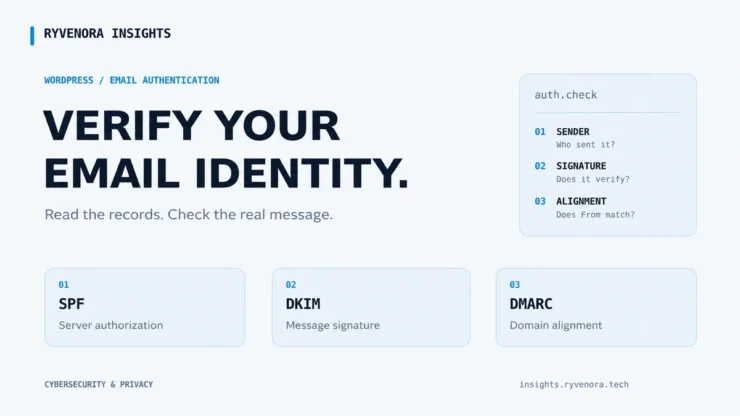
Think of SPF as server authorization, DKIM as a verifiable signature, and DMARC as the connection to the domain readers see in From. These checks do not encrypt the email body or promise that a message will appear in the inbox. Cloudflare provides an overview of the three mechanisms.
For personal Gmail accounts, Google requires SPF or DKIM for all senders and additional controls for bulk senders. It recommends using all three. Authentication is only part of its sender guidelines; reputation, transport security, and spam complaints matter too.
02 / List your senders before editing DNS
One business domain may send mail through several services. Changing records around a single WordPress notification without checking the others can disrupt working email.
| Message type | Possible sending service | Check separately |
|---|---|---|
| Staff email | Google Workspace, Microsoft 365, or hosted mail | Mailbox sending and signing settings. |
| Website notifications | Your WordPress mailer’s configured provider | The actual From and return-path identities. |
| Newsletter | A dedicated email marketing platform | Its domain-verification requirements. |
| Invoices or support replies | Billing or help-desk software | Any additional authorized sender. |
Record the provider, visible From address, verified domain, and who manages its DNS. Use each service’s current instructions. Receiving business email in one provider does not mean that provider also sends your WordPress notifications.
Save a copy of existing records. Edit at your authoritative DNS provider, which may be Cloudflare rather than your hosting control panel. Keep website, mailbox, newsletter, and support senders on your checklist.
03 / Check SPF at the correct DNS name
SPF normally checks the envelope sender, often reflected in Return-Path. That can differ from the address displayed in From. A third-party provider may use its own return-path domain or a custom subdomain you configure.
Look for the receiver’s smtp.mailfrom result first. Then inspect that domain’s SPF setup. Adding a provider to your root-domain record cannot fix an unrelated envelope domain that the provider controls.
# Replace example.com with the domain you need to inspect.
dig +short TXT example.comResolve-DnsName -Name example.com -Type TXTAmong the TXT results, identify the SPF record beginning with v=spf1. The existence of that text is only the first check: authorization depends on the record’s mechanisms and the actual sending server.
- One SPF record per DNS name. Other TXT records can coexist. Two separate SPF records at the same name are a configuration error.
- Account for legitimate senders. Use provider-supplied values when updating the record; do not copy another website’s setup.
- Check the lookup limit. SPF limits DNS-querying mechanisms and modifiers during evaluation. Nested includes count too; counting visible
include:entries alone is insufficient.
The SPF standard defines these checks. Google also documents duplicate records and excessive DNS lookups.
If a provider asks you to delegate a custom return-path hostname with a CNAME or other records, follow that exact procedure. Do not add conflicting records at the same hostname.
04 / Verify DKIM using its real selector
DKIM uses a private signing key and a public verification key. The sending provider keeps the private key; DNS makes the public verification information available. Never publish a private key.
In a received message’s DKIM-Signature header, find d= for the signing domain and s= for the selector. Those values identify the lookup name:
d=example.com
s=rvi1

DNS lookup name:
rvi1._domainkey.example.com
Check that specific name. There is no universal selector called “default,” “google,” or “rvi1”; the example above only shows the naming pattern.
dig +short TXT rvi1._domainkey.example.com
dig +short CNAME rvi1._domainkey.example.com
Providers may supply a TXT record containing public-key data or a CNAME pointing to a managed key. Copy the prescribed record type, hostname, and value. In Cloudflare, email-authentication CNAME records should be DNS only, consistent with its proxy guidance.
Finish verification in the provider’s dashboard and enable signing if its workflow requires a separate step. For example, Google Workspace’s DKIM setup includes enabling authentication after publishing the key.
A correct key in DNS does not prove your mailer used it. Send a fresh message through the intended service and inspect its DKIM result.
05 / Check alignment before changing DMARC policy
DMARC needs at least one passing, aligned SPF or DKIM identity. Both mechanisms do not have to pass for DMARC to pass. Conversely, a pass for an unrelated domain does not establish alignment.
| SPF result | DKIM result | DMARC outcome |
|---|---|---|
| Pass and aligned | Fail or absent | Pass. |
| Fail or unaligned | Pass and aligned | Pass. |
| Pass, unrelated domain | Pass, unrelated domain | Fail: neither passing identity aligns. |
| Fail | Fail | Fail. |
Alignment can be relaxed or strict. Relaxed alignment compares organizational domains; strict alignment requires identical domains. For a typical example.com setup, mail.example.com may align under relaxed rules but not strict rules. Check the domain’s actual policy. The current DMARC standard, RFC 9989, defines this behavior.
For a visible From address at example.com, inspect the policy with:
dig +short TXT _dmarc.example.comIf you send from a subdomain, check that subdomain’s DMARC record and any applicable inherited policy too. A missing record at one name does not necessarily mean no policy applies.
A monitoring policy may look like the following. It is an illustration, not a recommendation to replace an existing policy:
v=DMARC1; p=none; rua=mailto:[email protected]p=none requests no DMARC-based enforcement; the reporting address requests aggregate reports where supported. It does not make failing messages pass or guarantee delivery. Use a report destination you control or an authorized reporting service.
p=quarantine and p=reject request stronger handling of failing messages. Review legitimate senders and reports before tightening policy. If enforcement is already working, do not weaken it simply to troubleshoot a new sender. Google’s DMARC setup guidance explains the rollout process.
06 / Verify a real WordPress email
After saving the provider’s settings and allowing DNS caches to refresh, send a new WordPress notification to a separate receiving inbox you control. Include a unique subject and note the time so you can find its provider log entry.
- Open the received email in Gmail on the web.
- Choose the three-dot menu next to Reply, then Show original.
- Review SPF, DKIM, and DMARC results.
- Inspect the receiver-added authentication details for the envelope-sender, signing, and visible From domains.
- Repeat the test for another sending service, such as your newsletter platform.
Google documents how to view the full message headers. Do not treat an old email as evidence that your latest DNS change worked.
From: [email protected]

spf=pass   smtp.mailfrom=bounce.provider.example
dkim=pass  header.d=example.com
dmarc=pass header.from=example.com
Here, SPF passes for an unrelated provider domain. DMARC passes because DKIM passes for the visible From domain. The important evidence is which domain passed, not just the word “pass.”
If nothing arrives, use the sending provider’s event log or bounce details. There may be no message in Gmail to inspect. A plugin success notice alone does not verify authentication at the receiver.
07 / Match the failure to the next action
| What you find | What to investigate |
|---|---|
| SPF permanent error | Duplicate SPF records, invalid syntax, or an evaluation exceeding DNS lookup limits. |
| SPF passes, DMARC fails | Whether the SPF identity aligns; then check for a passing, aligned DKIM signature. |
| DKIM missing | Whether the actual sending service signs these messages and signing is enabled. |
| DKIM fails | The selector, published key, key rotation, and possible message changes after signing. |
| DNS looks correct, provider verification fails | The authoritative DNS location, duplicated domain suffixes, record type, and cached answers. |
| All checks pass, message lands in Spam | Sending reputation, complaints, recipient filtering, and message content. Authentication is not an inbox guarantee. |
Forwarding can change authentication outcomes. For an initial diagnosis, test direct delivery from the intended sender, then investigate any forwarding path separately. Avoid publishing full headers publicly without removing personal addresses and other sensitive details.
- Every legitimate sending service is on your inventory.
- You checked SPF for the actual envelope-sender domain.
- DKIM records match the provider’s real selector and signing domain.
- A received message shows a passing identity aligned with From.
- Your DMARC policy and reporting setup match your rollout stage.
- You tested website, mailbox, and newsletter mail separately.
For form-specific sender settings, mailer connections, and delivery logs, continue with our Contact Form 7 troubleshooting walkthrough.
Frequently asked questions
Does WordPress create SPF, DKIM, and DMARC records automatically?
WordPress itself does not configure your domain’s authoritative DNS. Your host or email service may automate some setup, but you should still verify the actual DNS records and a newly received message.
Can I use separate email providers for my website and newsletter?
Yes. Verify each provider’s sending identity and follow its DNS instructions. Different services can use different DKIM selectors or return-path subdomains. Keep their requirements documented so a change for one does not disrupt another.
Do I need three separate WordPress plugins?
No. SPF, DKIM, and DMARC are authentication mechanisms, not three plugin features you must install. Use the sending service’s setup instructions, publish the required DNS records, and verify the received mail.
Does p=none prevent domain spoofing?
A monitoring policy does not request quarantine or rejection based on DMARC failure. Use it to observe a rollout when appropriate; stronger policy requires checking that legitimate senders authenticate and align.
Does a passing DMARC result guarantee inbox placement?
No. It confirms that the receiver found a passing, aligned authentication identity for that message. Other delivery and filtering decisions still apply.
Sources and documentation
Examples use reserved domains and illustrative results. This article does not claim a live authentication test of your website.


Add comment