

Technology / Desk accessories / Buying and setup guide
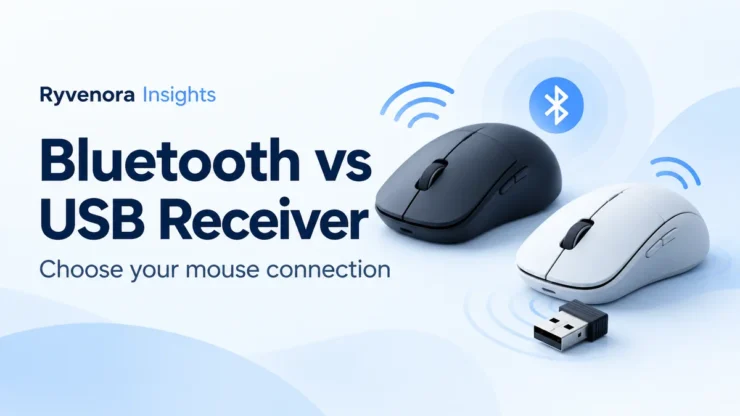
Choose a Bluetooth mouse if you want to connect through your computer’s built-in Bluetooth and keep USB ports free. Choose a mouse with a compatible USB receiver if you prefer that receiver-based setup and have a suitable port. A dual-mode model can provide both options, but check the exact model, included receiver, and operating-system support before buying.
There is no universal winner for every desk. A travel laptop, a docked workstation, and two computers sharing one mouse create different requirements. The useful comparison is the complete connection path you will actually use.
“USB receiver” means the small wireless receiver used by a compatible mouse, not a general Bluetooth adapter. The mouse still communicates wirelessly. A Bluetooth adapter instead adds Bluetooth capability to the host computer; it does not become a universal receiver for proprietary mouse protocols.
01 / Understand what connects to what
With direct Bluetooth, the mouse pairs with the computer’s Bluetooth hardware. With a mouse receiver, the receiver plugs into USB and provides the matching wireless connection to the mouse. A product supporting both lets you select between those paths according to its instructions.
The common phrase “Bluetooth versus 2.4 GHz” can be misleading. The Bluetooth Low Energy radio specification also places Bluetooth LE in the 2.4 GHz band. Frequency alone does not identify receiver compatibility, responsiveness, or reliability.
Nor is every receiver protocol completely unrelated to Bluetooth technology. Logitech explains that Logi Bolt is based on Bluetooth Low Energy, while Unifying uses Logitech’s proprietary 2.4 GHz protocol. They are different receiver families and are not interchangeable.
For buying purposes, focus on the supported connection modes printed in the exact product’s specifications. “Wireless,” “USB,” and a photograph of a tiny receiver are not sufficiently precise descriptions.
02 / Check both ends of the connection
For Bluetooth, check the host and the mouse
Confirm that your computer has working Bluetooth and that the mouse supports your operating system and its required Bluetooth version. A desktop without built-in Bluetooth may need a compatible Bluetooth adapter; include that extra hardware in your decision.
Basic pointing support and optional configuration software are separate checks. If you need programmable buttons or application-specific scrolling, look up support for that exact feature on the operating system you use.
For a receiver, check the family and USB connector
Logitech’s replacement-receiver guidance tells users to identify the receiver type and matching device logo. Its Unifying receivers do not work with products that are not Unifying compatible. Do not assume that a spare receiver from the same brand will pair with your mouse.
Also check the physical connector. Logitech currently documents both USB-A and USB-C Logi Bolt receivers. That does not establish what comes in every mouse box: inspect the package contents and regional product listing.
When replacing a lost receiver, find the mouse’s exact model or part number first. Verify replacement availability and the supported pairing procedure before paying for a receiver that merely looks similar.
03 / Match the connection to your real desk
| Your setup | Useful starting choice | Check before committing |
|---|---|---|
| Laptop used while travelling | Bluetooth | Pairing support and whether you want to avoid carrying a receiver or adapter. |
| Desktop with no working Bluetooth | Compatible mouse receiver | Available USB port and included receiver. |
| Laptop usually connected to a desk dock | Either; dual-mode may be convenient | Behavior when the dock is disconnected and after sleep. |
| Two computers used regularly | Model with documented device switching | Number of saved hosts, switching controls, and software requirements. |
| Work-managed computer | Approved connection and model | IT policy, pairing access, and permission to install optional software. |
Hypothetical example: a consultant uses a laptop at client sites and a dock at home. A supported dual-mode mouse could use Bluetooth while travelling and its receiver at the desk. Before choosing that arrangement, the consultant should check how the mouse selects its connection and whether returning to the desk requires a manual switch.
Count the complete accessories you would need. A receiver requiring an adapter adds another item to pack and another connection to check. A mouse connected only through a dock also depends on that dock remaining attached.
If you are choosing the dock at the same time, our USB-C dock compatibility guide helps you check the wider setup. Reserve a suitable data port for the receiver rather than assuming every connector serves the same purpose.
04 / Set up the mode you intend to use
Direct Bluetooth
Turn on the mouse, select its Bluetooth mode or device channel if applicable, and put it into pairing mode using the manufacturer’s instructions. Button locations and hold times differ between models.
On Windows 11, Microsoft’s pairing guidance starts in Settings → Bluetooth & devices. Turn on Bluetooth, use the add-device controls, and select the discoverable mouse. Follow any further prompts.
On a Mac, Apple’s connection instructions use System Settings → Bluetooth. Find the discoverable device and choose Connect. Keep the laptop’s trackpad or another working input method available during setup.
Mouse receiver
Plug the correct receiver into a compatible USB data port and select the mouse’s receiver mode if it has a mode selector. Use its official setup instructions. If the supplied receiver is already paired, the process may differ from pairing a replacement receiver.
Check ordinary movement, left and right click, scrolling, and the buttons you need. Then check the setup after locking the computer, waking it, and reconnecting your dock. These checks are recommended actions for your equipment; they are not tests performed for this article.
05 / Treat multi-device switching and power as model features
Bluetooth support alone does not specify how many computers a mouse remembers or how you switch between them. Look for a documented channel button, host count, and setup sequence.
As one specific example, Microsoft Bluetooth Ergonomic Mouse supports pairing with up to three PCs and manual switching with its pairing button. Its separate Smart switch feature requires Microsoft Mouse and Keyboard Center on each PC. Those are that model’s documented capabilities, not promises for all Bluetooth mice.
For a dual-mode product, write down the intended mapping: which computer uses Bluetooth, which uses the receiver, and which control changes the active connection. Check whether the desired arrangement is supported before buying two receivers.
Evaluate power separately. Compare the exact model’s replaceable-battery or rechargeable design, charging connector, and manufacturer-stated conditions. A connection label alone cannot establish battery life.
If you expect to use a mouse while charging, verify that capability explicitly. A charging socket does not by itself establish wired data operation, and the physical socket position may affect usability.
06 / Troubleshoot one part of the path at a time
Start by confirming the power switch, battery state, and selected connection mode. A mouse on the wrong device channel can look disconnected even when its hardware is fine.
| Symptom | First check | Next comparison |
|---|---|---|
| Bluetooth mouse is not listed | Pairing mode and host Bluetooth availability. | Follow the operating system’s discovery troubleshooting. |
| Receiver mouse does not respond | Correct receiver, mode, battery, and USB connection. | Try a direct computer USB port instead of the hub. |
| Problem appears only when docked | Dock connection and receiver position. | Compare with the receiver directly connected. |
| Connection feels intermittent | Distance, nearby devices, and power. | Change one condition and repeat the same ordinary task. |
Microsoft’s mouse troubleshooting guidance recommends checking batteries, trying a different USB port, and bypassing a hub. It also describes unplugging a USB wireless receiver briefly and reconnecting it.
For Bluetooth, Microsoft warns that some unshielded USB devices near USB 3.0 ports can cause interference. If a problem begins beside an external drive or dock, compare a different physical arrangement before concluding that the mouse needs replacing.
Keep a brief record: connection mode, port or dock used, and whether the symptom appears after sleep or during a particular task. If you change the port, battery, driver, and pairing at once, you lose the ability to identify which change mattered.
Re-pair only when you have another way to control the computer. If problems persist, follow the exact model’s support instructions and your organization’s update policy.
07 / Use a short purchase checklist
- Confirm the exact model and its Bluetooth, receiver, or dual-mode support.
- Check supported operating systems and optional software features.
- Confirm whether the receiver is included and which USB connector it uses.
- Verify receiver-family compatibility and replacement options.
- Check device-switching controls if you use more than one computer.
- Check power, charging, size, shape, and the buttons you actually need.
- Review the return policy so you can evaluate the mouse in your own setup.
For ordinary work, select the connection that fits your ports and workflow. If you need measured latency or competitive-gaming performance, compare evidence for the exact model and connection mode; this guide provides no timing benchmark or blanket speed ranking.
Frequently asked questions
Can any USB receiver work with my wireless mouse?
No. Match the exact mouse and receiver family. Even one brand can use incompatible receiver systems.
Is a Bluetooth mouse different from a 2.4 GHz mouse?
Bluetooth LE also operates in the 2.4 GHz band. In shopping descriptions, the distinction usually concerns direct Bluetooth versus a dedicated receiver, so check the actual connection specification.
Should I choose Bluetooth for a laptop with few ports?
It is a useful starting choice when the laptop and mouse support the connection. Check the features and device-switching behavior you need before deciding.
Will switching to a receiver fix every connection problem?
No. Check power, compatibility, the selected mode, USB ports, dock behavior, and the physical environment. Compare changes one at a time.
List the computers, ports, and switching routine your mouse must support. Then compare exact model specifications and package contents against that list.
Sources and editorial notes
Bluetooth SIG, Microsoft, Apple, and Logitech documentation was checked on 26 October 2026. Primary sources are linked beside the relevant claims. The consultant scenario is hypothetical. No hands-on mouse testing, battery measurement, latency benchmark, or affiliation is claimed.


Add comment