

WordPress & Web Development / Content planning / Practical guide
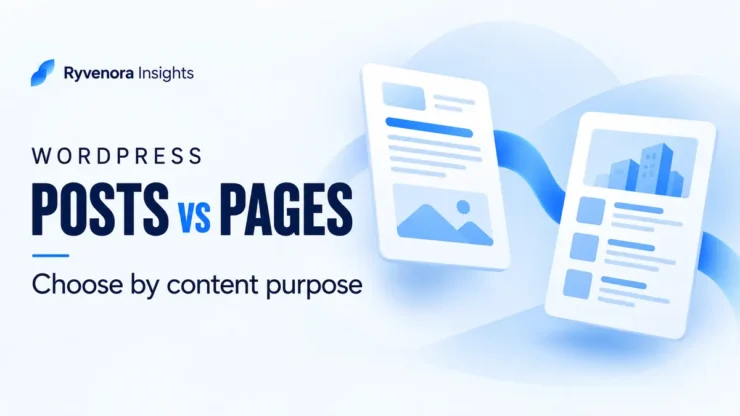
Use WordPress pages for standing destinations such as services, About, and Contact. Use posts for articles, updates, and other entries you want organized through the blog and its topic archives. Choose by the content’s job and how readers should find it, then check the layout, URL, and publishing workflow separately.
A useful service explanation and a useful article may cover the same subject without serving the same purpose. “Website maintenance services” helps someone evaluate an offer. “What to check after a WordPress update” teaches a specific task. Giving them distinct roles helps you plan both without publishing two competing versions of the same explanation.
Ask: is this a destination readers should return to as part of the site’s structure, or an entry in an ongoing publication? Start with a page for the first and a post for the second. The examples below are hypothetical planning scenarios, not claims about a tested website.
01 / Compare posts and pages in a default site
WordPress’s post-type documentation describes posts as chronological blog entries and pages as content that can form a parent–child hierarchy. Both are content types; the word “post type” is a technical umbrella that includes pages too.
| Question | Post | Page |
|---|---|---|
| Where does it normally belong? | The chronological blog stream. | A standing destination outside that stream. |
| How is it grouped? | Categories and tags. | Parent and child pages. |
| Does it join the normal feed? | Posts are used for RSS feeds. | Pages are outside the normal blog feed. |
| Typical business use | A tutorial, news item, or editorial article. | A service description, About, or Contact. |
| What decides the visual layout? | The applicable template and theme options. | The applicable template and theme options. |
This describes the standard arrangement. Plugins and custom development can add features or different content types. Check the site you actually maintain before treating a missing or additional sidebar control as an error.
“Standing” does not mean untouched. A service page should be corrected when the service changes. An older tutorial may also need regular review. Publication frequency alone is therefore a weak deciding rule: choose the intended home for the content, then assign a maintenance owner.
02 / Choose by the reader’s purpose
Write a one-sentence brief before opening the editor. State who the content helps, the question it answers, and what someone should be able to do after reading. This keeps the choice connected to a useful destination rather than to whichever editor button is easiest to find.
| Proposed content | Starting choice | Reason |
|---|---|---|
| Current website maintenance offer | Page | A stable place to understand scope and enquire. |
| Checklist for reviewing a failed form submission | Post | A focused instructional entry in a help publication. |
| Team introduction and contact details | Page | A reference destination visitors should find consistently. |
| Announcement of a new service | Post plus a distinct service page if needed | The announcement records the launch; the page describes the current offer. |
For the last example, avoid copying the entire service page into the announcement. Explain what changed, who it helps, and where to read the current details. Later, update the service page when scope changes rather than leaving several announcements to act as competing price lists.
An evergreen article can remain a post. A detailed explanation is not automatically a page simply because it will be useful next year. Conversely, a service page does not become a post because you update it every month.
If both proposed items answer the same question for the same audience, consider one stronger item. If their purposes differ, describe that difference in the brief and link between them only where it helps the reader.
03 / Plan page hierarchy and article groupings separately
WordPress’s page guide explains parent pages and subpages and notes that pages do not use categories or tags by default. A hypothetical agency could have a Services page with separate child pages for design and maintenance. Keep the hierarchy understandable without making visitors traverse unnecessary levels.
For posts, Learn WordPress’s taxonomy guidance describes categories and tags as ways to organize and navigate entries, with category archives linking related posts. Use a small, understandable set of broad categories and reusable tags instead of inventing a new label for every article.
Plan two things for each item: where it belongs administratively and how visitors reach it. A page’s parent relationship is not a complete menu plan. A category assignment is not a guarantee that your particular homepage design will show that article.
For example, a maintenance service page might link to a practical maintenance checklist. The checklist might offer a relevant route back to the service for readers who want help. Each link has a clear reason; neither item needs the other’s full content repeated inside it.
Keep labels descriptive. A navigation label can be short enough to scan while the destination title explains the subject more fully. Verify the label and destination together so a concise menu item does not send readers to an unrelated archive.
04 / Separate the content type from its template
A post with an unwanted sidebar is usually a layout investigation, not an immediate reason to recreate it as a page. Identify which template and per-item options apply before changing the content’s role.
WordPress’s Template Editor documentation distinguishes templates for single posts, pages, archives, and the front page. It also distinguishes assigning a template to an item from editing the shared template itself. Editing a shared template affects the content using it.
Preview a representative item before applying a layout change. Check the title, featured image, content width, headings, lists, tables, and calls to action. Make sure the template displays the item’s content rather than a fixed block of text that happens to resemble it.
When fixing one awkward article, inspect whether the change affects that item, every post using its template, or a shared site element. Review shared changes separately from the content edit.
Classic themes and page builders may expose different controls from a block theme. Use the documentation for the active setup. Avoid treating a tutorial’s exact sidebar labels as proof that every WordPress installation has the same interface.
05 / Understand the special role of the posts page
A page named Blog and a single blog post are different objects. WordPress’s front-page guidance describes selecting a homepage and a separate posts page. The posts page acts as the destination for the blog listing; it is not where you compose every article.
The applicable blog template controls that listing. In a classic theme, WordPress’s front-page template guidance specifically notes that the page template assigned to the designated posts page is not used for the blog index. Investigate the listing template when edits to the Blog page do not produce the expected result.
Create individual articles under Posts. Then inspect the listing itself: is the article visible, is the title correct, and does its teaser help someone choose whether to read it? Our excerpt vs More block guide covers the separate problem of controlling those teasers.
A curated resources landing page can serve a different purpose from the chronological blog. Decide whether you need an editorially selected collection or an automatically updated listing before trying to make one destination serve both jobs.
06 / Create a draft and verify how readers find it
For a new item, open Posts or Pages in the dashboard and choose the corresponding Add New action. Draft the content, review its title and intended URL, and inspect the available settings before publishing. Learn WordPress’s introductory lesson demonstrates both creation paths.
For a post, select the intended category and useful existing tags. For a page, check the parent if one is needed. In either case, choose a descriptive title and confirm that headings inside the content follow the title rather than duplicating it.
Check discovery after publication instead of assuming automatic menu behaviour. The Navigation block documentation explains that a Page List can automatically include newly published pages, while a menu converted to individual page links no longer does so. Your active menu setup determines what happens.
- Open the item through its actual published URL.
- Follow the intended menu, archive, or contextual link to reach it.
- Check the mobile layout and keyboard navigation.
- Inspect headings, images, tables, and the main action link.
- Confirm the content is visible to the intended audience.
- Assign someone to review factual details when the offer or guidance changes.
Keep a simple content record with the title, URL, type, purpose, owner, and review trigger. For example, a service scope change should trigger review of the service page and any articles that describe that scope. This is more actionable than marking everything “evergreen.”
07 / Review an existing item before recreating it
If content already exists, identify the problem first. Is it hard to find, visually awkward, assigned to the wrong topic, or genuinely serving the wrong role? A navigation link or template correction may address the issue without replacing the item.
Before a planned move, record the current URL, incoming internal links, images, forms, and any integrations that depend on the item. Keep a recoverable copy and review the replacement in a safe environment. Do not assume copying visible text preserves every setting or relationship.
WordPress’s permalink documentation describes the different URL structures and their settings. If a reorganization changes the public address, plan how old links reach the correct replacement. Our WordPress 301 redirect guide covers that migration work in detail.
Check both addresses after the change: the new destination should contain the correct content, and the old address should take visitors where intended. Update your own links to the final destination. Avoid leaving two nearly identical public versions as an accidental result of the move.
For a small content library, consistency usually makes maintenance easier. Record the decision rule you will use for the next service page or tutorial, then apply it to new work rather than repeatedly reorganizing established content.
Frequently asked questions
Should a service description be a post or a page?
A page is a useful starting choice for the current offer and enquiry route. A separate post can explain a launch, change, or specific practical question without repeating the entire service description.
Can an evergreen tutorial stay a post?
Yes. Its role in a publication and topic archive can remain useful even when the guidance lasts a long time. Give it a review owner and update factual details as needed.
Does creating a page automatically put it in the menu?
It depends on the menu setup. A Page List and a manually maintained list of links behave differently. Check the public navigation after publishing.
Should I change content type just to remove a sidebar?
Investigate the applied template and available layout options first. Presentation and the editorial role of the content are separate choices.
Sources and scope
Official WordPress documentation and Learn WordPress material were checked on 28 October 2026. This guide describes default content behaviour; plugins, themes, and custom development can change the available controls. Business examples are hypothetical planning illustrations, and no ranking or conversion result is claimed.


Add comment