

WordPress & Web Development / Content access / Practical guide
Use a Private WordPress page when access should depend on an authorized WordPress account. Use a password-protected page when a shared page password fits the audience and content. Neither choice should be assumed to protect linked downloads, provide individual client access management, or hide every title and preview.
Before choosing, decide who should read the material, what may remain visible outside the page, and how access will end. A workshop outline for a small group and a confidential client document need different handling even if both are described as “private.”
Write one sentence describing the rule: “Our existing editorial team can read this page,” or “Anyone we give this password can read this page.” If you need named recipients, individual revocation, expiry or protected downloads, specify those requirements separately before relying on either built-in option.
01 / Compare access with editorial status
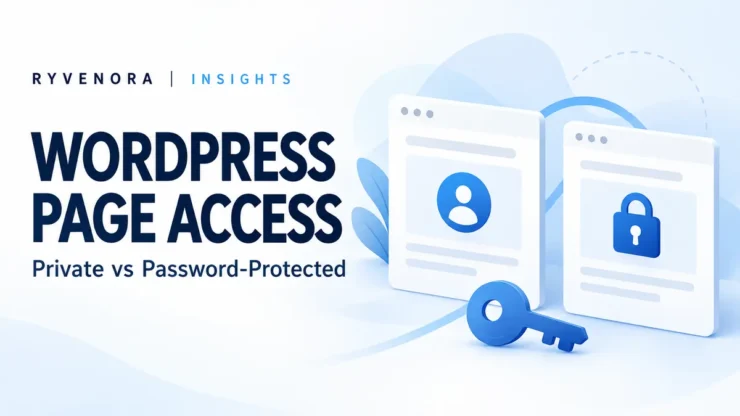
WordPress’s visibility guidance describes Public, Private and Password Protected options for individual posts and pages. Private content is hidden from ordinary public visitors; a password-protected entry presents a password prompt while its title remains visible.
| Choice | Useful starting situation | Question before use |
|---|---|---|
| Public | The page is intended for general visitors. | Is every included asset suitable for that audience? |
| Private | Existing authorized site users need the page. | Which actual accounts have permission? |
| Password Protected | A shared secret is sufficient for page access. | Is forwarding that secret an acceptable risk? |
| Draft or Pending | The content is still in an editorial workflow. | Who needs to edit or review before publication? |
Keep readiness separate from audience. WordPress’s status documentation identifies Draft as unpublished work and Pending as a review state. Private publication is an audience decision, not simply another way to say “unfinished.”
For a hypothetical staff handbook reviewed by the existing editorial team, Private might fit. For a non-sensitive event briefing shared with a small group, a page password may be sufficient. For individual customer records, start with explicit access requirements and a suitable delivery system rather than stretching those examples.
02 / Check the accounts that can read a Private page
WordPress’s roles and capabilities reference assigns read_private_pages to Administrators and Editors by default. A Subscriber account does not gain that capability merely by logging in. Custom roles and plugins can change the permissions in a particular installation.
That makes “give the client an account” an incomplete plan. Check the account’s capabilities and test the exact page. Do not promote someone to Editor just to let them read a document; that role includes broader content-management powers.
List the intended readers and ask the site administrator which existing access arrangement meets the requirement. If you need a narrow customer portal or member area, evaluate that as its own implementation project. Record whether users may view only, edit, upload files or manage others.
Also consider the site’s existing trusted operators. Private does not mean hidden from the administrators who run WordPress. The official visibility documentation warns that editors and administrators can see and modify private content in the editing interface.
Our Author vs Contributor guide covers a different question: assigning writer permissions. Use it when planning an editorial workflow, while testing page-reading access independently.
03 / Understand what a shared password establishes
A page password demonstrates possession of that secret; it does not identify a named recipient. If several people receive it, one person can pass it on. Decide whether that sharing model fits before adding content.
Choose a unique, strong password rather than reusing a WordPress login password. Share it through your agreed communication process and avoid placing it beside the public link. Keep an owner responsible for updates and for answering recipients who cannot open the page.
WordPress can remember a successful page-password submission in a browser cookie. The core password-check reference checks whether the correct password cookie is present. A browser you already unlocked is therefore a poor test of what a new visitor sees.
For testing, keep one browser context untouched and use another to unlock the page. Record which session represents which reader. A private browsing window helps create a separate session for this check, but it does not make the page itself private or change the site’s access policy.
If you need to remove one person while retaining everyone else, a shared secret creates coordination work. Define whether to change the password, redistribute it, or move to a system designed around named accounts. Do not promise individual revocation based on one group password.
04 / Save the intended visibility before sharing
The current settings-sidebar documentation places status and visibility controls in the page or post settings. Labels and layout can differ across editor versions and site customizations, so check the current control rather than following an old screenshot blindly.
- Open the exact page and confirm its title and URL.
- Open the Page settings rather than the selected block’s settings.
- Find the Status or Status & visibility control.
- Choose Private or Password protected as intended; enter the page password if applicable.
- Save or confirm publication, then reopen the settings to verify the stored choice.
- Test access before sending the link.
Use a harmless sample page first if you are unfamiliar with the installation. A generic test paragraph and non-sensitive image are enough to verify the workflow without placing real confidential information at risk.
Keep the audience rule in the handover note. A later editor should understand why the page is restricted and who may authorize making it public. Treat changing visibility as a meaningful publication decision, not a cosmetic adjustment.
05 / Check files and discovery separately
Jetpack’s WordPress guidance explicitly notes that a page password applies to the post or page, not its media files. Someone with a direct image or file URL may still access it unless the assets have separate protection.
Copy the direct address of each important PDF, image, video or download and test it as an unauthorized visitor. Repeat for an externally hosted asset. The page’s password form is not evidence about a separate storage service’s permissions.
If downloads must be confidential, choose a delivery arrangement that enforces access to the file itself. Specify named recipients, expiry and revocation where needed, and ask the implementer to demonstrate those behaviours. Avoid treating a long, unlisted file URL as a complete access policy.
Review titles, featured images, manual excerpts, archive cards, internal search and link previews too. Use neutral labels when even the subject should not be public. Theme, builder and integration output should be checked on the actual site rather than inferred from the editor.
Google’s content-control guidance says a noindex rule can keep content out of Search while users may still visit it directly. It is not a login requirement or file-access restriction. Hiding a link from a menu is likewise not an authorization check.
06 / Test as the audience, not only as the editor
Write down the expected result before testing. Use the matrix below as a starting checklist, then add any membership, builder or hosting features your installation uses. These are suggested checks; no WordPress visibility configuration was hands-on tested for this guide.
| Test context | What to inspect | What to record |
|---|---|---|
| Fresh logged-out session | Page URL, listings and direct file URLs. | What is visible without authorization? |
| Correct shared page password | Protected body and intended resources. | Can the recipient complete the task? |
| Incorrect password | Password form and response. | Does restricted content remain unavailable? |
| Intended account | Private page and any linked assets. | Does the real recipient have the expected access? |
| Account without permission | The same URLs. | Is access denied as planned? |
Then repeat the logged-out test after an authorized visitor opens the page. This helps check whether the deployed caching and delivery arrangement preserves the intended separation. If content appears in the wrong context, stop sharing and involve the site or hosting administrator.
Check the final rendered output, including embedded widgets, downloads and previews. If the page uses a builder or a custom template, verify those elements explicitly. Record the URL, test account or session type, date and observed result so another person can repeat the check.
07 / Plan changes and the end of access
Set a review date when the page is created. Ask what should happen after a workshop, client review or internal project ends: retain access, rotate a shared password, archive the material or remove it from the delivery system.
- Name the person who can authorize visibility changes.
- Record linked assets and their separate storage permissions.
- Review access after staff or supplier changes.
- Retest after template, membership or cache configuration changes.
- Check both fresh sessions and previously authorized sessions after changing access.
- Confirm the recipient-facing result before announcing a new link or password.
Changing access cannot recall a copy someone already downloaded or captured. Keep that limitation in the original sharing decision. If material was previously public, assess where copies or previews may remain rather than assuming a new page setting removes them everywhere.
For a page becoming public, review the content and files again as a publication package. Remove internal notes, confirm permissions to publish assets, and check the public listing and preview text. The right visibility setting should follow the approved audience, not decide it by accident.
Frequently asked questions
Can every logged-in user read a Private page?
No. Access depends on capabilities. Default Subscriber access is not sufficient to read other private pages; test the actual recipient account.
Does a page password protect its PDF downloads?
Do not assume so. Test the direct file URL and arrange separate file protection when required.
Will noindex make a page confidential?
No. It controls search indexing rather than direct visitor authorization.
Which option is better for a client portal?
Start with named-reader, file-protection, revocation and audit requirements. A shared page password or standard Private page may not satisfy that workflow.
Sources and editorial notes
Primary WordPress, Jetpack and Google documentation was checked on 28 October 2026. Examples are hypothetical. Default capabilities can be customized, and themes, builders, plugins and delivery systems require verification on the actual installation.



Add comment