

Digital Business / Google Workspace / Team files
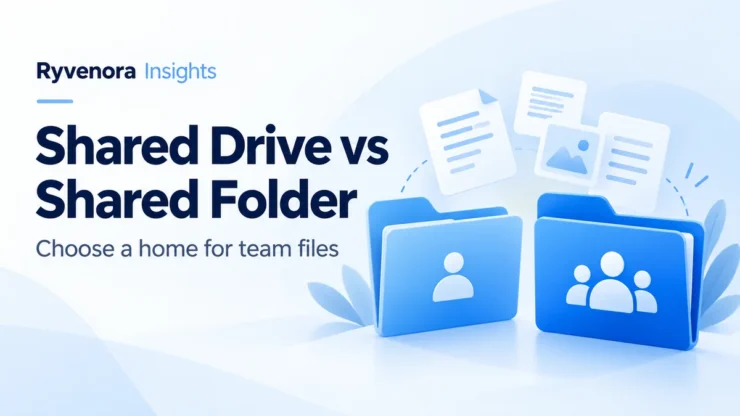
Use a Google shared drive for business files that need to stay with your organization as people join and leave. Use a shared folder in My Drive when individual ownership is appropriate and you only need to give collaborators access. A folder shared with colleagues does not become a shared drive.
The decision is about responsibility as much as convenience. Who should keep the final proposal? Who may invite a contractor? Where will the next employee find the working files? Answer those questions before moving a busy project folder.
Choose the long-term home first, define its audience second, and move a small pilot third. Check the actual accounts, ownership, and permissions instead of relying on a familiar folder name.
01 / Ownership and access solve different problems
Sharing answers “who can use this?” Ownership answers “whose file is this?” In My Drive, files and folders have individual owners. In a shared drive, the organization owns the content. Google’s shared drive comparison explains both models, including the default visibility for drive members.
| Decision | Shared folder in My Drive | Shared drive |
|---|---|---|
| Long-term responsibility | Individual file ownership needs attention. | Organization ownership fits ongoing team records. |
| Typical use | A person’s working material shared with selected collaborators. | A team’s maintained project or reference collection. |
| Starting access design | Check folder sharing and the files inside. | Choose drive membership, then any narrower sharing. |
| Planning question | Who will manage each owner’s material later? | Who manages membership and the content lifecycle? |
Google states that files added to a shared drive remain when a member leaves. That continuity is its central business advantage; see what shared drives can do. It does not decide which documents your business should retain or who should approve their release.
For example, an employee might keep a private outline in My Drive while the approved operating procedure belongs in the team’s maintained collection. This is a hypothetical workflow, not a requirement to move every draft your staff creates.
02 / Check availability before buying or reorganizing
Shared drive creation depends on a supported work or school edition and administrator permission. As checked on October 26, 2026, Google lists Business Starter, Business Standard, and Business Plus among the supported editions for allowing users to create shared drives. Advice saying Business Starter never includes them is outdated.
Creation and advanced controls are separate questions. Google’s administrator documentation says setting default shared drive sharing restrictions and changing those restrictions are not supported for Business Starter. More restrictive organization-wide Drive sharing settings can still override shared drive settings.
- Confirm which account is signed in; a company email address alone does not establish its Workspace edition.
- Ask the administrator whether your user can create a shared drive.
- List any required external sharing restrictions before comparing subscriptions.
- Check storage and other operational requirements in your own subscription before planning a large move.
Do not upgrade purely because a menu is missing. Establish whether the cause is the account, license, or administrator permission, then compare the specific controls the business actually needs.
03 / Design around who should see the material
By default, shared drive members can see its content. Google also documents limited-access folders for narrower visibility and sharing selected files or folders with non-members when permitted. Those options appear in its overview of shared drive sharing.
For a small business, understandable boundaries are easier to maintain than dozens of exceptions. Consider separate spaces for internal operations and a client project when their audiences differ substantially. Avoid placing unrelated client records together and relying on people to remember which links are safe.
Give a client the smallest useful scope
A client reviewing one deliverable may only need that file. A recurring collaborator may need a project folder. Whole-drive membership deserves a separate decision. Google’s creation and membership guide says external people can be added when the organization allows it and their email is associated with a Google Account. It also explains that content they contribute to your organization’s shared drive becomes organization-owned.
In a hypothetical design agency, staff could work in “Client Cedar — Working” while the client receives access to a selected review folder. Before adopting that arrangement, verify the client’s actual sign-in and permitted actions. Do not infer their experience from what your manager account can see.
04 / Match roles to browser and desktop work
Roles describe different powers, not seniority. Use Google’s shared drive permission table to check them. These are starting points for discussion:
| Role | Useful starting task | Power to consider |
|---|---|---|
| Viewer | Read reference material. | Cannot edit it. |
| Commenter | Review and comment. | Cannot edit the file itself. |
| Contributor | Create, upload, and edit through Drive on the web. | Cannot move content within the drive or send it to Trash. |
| Content manager | Maintain and organize working content. | Can move content and send it to Trash. |
| Manager | Manage drive membership and responsibilities. | Can change membership and has broader control over the drive. |
There is an important desktop distinction: Contributor access is read-only in Google Drive for desktop and the Chrome OS Files app. Google specifies Content manager or Manager for creating, uploading, and editing there. Confirm the person’s actual workflow before choosing a role.
Keep a named business contact responsible for access decisions, with appropriate backup coverage. Document who approves external invitations. Review powerful roles when someone’s job changes instead of automatically giving every colleague the same access.
05 / Create the home before adding the archive
For an authorized user, the web steps are Drive → Shared drives → New, followed by a name and Create. Members are added through Manage members. Google’s setup instructions note that new members default to Content manager, so inspect the selected role before confirming.
- Name the audience and purpose. “Operations — Internal” is more informative than “Shared stuff.” These names are hypothetical examples.
- Write a short filing rule. Explain what belongs here, who maintains it, and where approved versions go.
- Start with a few folders. Use categories your colleagues recognize rather than recreating every historical folder.
- Create a harmless sample. Add a non-sensitive document to check the intended collaboration before bringing in active work.
Google’s adding files guide covers creating or uploading files directly inside the shared drive. Starting new team work in its intended home avoids having to untangle ownership later.
06 / Pilot a move and inspect exceptions
Moving a live folder can change access. Google’s migration guidance says inherited permissions from the old parent are not copied. Non-members may lose access. External-owned files and folders cannot be moved into your organization’s shared drive, even when that external owner is a drive member.
By default, you can move content you own; an administrator can enable eligible file editors to move files. Moving a folder requires Manager access to the destination shared drive. Check these conditions before scheduling the move.
- Choose a small, low-risk project with a representative document and uploaded file.
- Record its owners, current collaborators, important links, and intended destination.
- Arrange a quiet change window and identify a contact who can resolve access problems.
- Perform the pilot with the necessary permissions; read every warning before proceeding.
- Check the resulting items and test access before moving another batch.
Google notes that some folder moves create shortcuts for items that cannot move. Inspect exceptions and any available CSV item list. A familiar folder structure alone does not prove every original reached the new home.
A shortcut references an original and does not grant access to it, as Google explains in its file access tips. Resolve the original’s owner and location before calling the migration complete.
07 / Verify access and establish maintenance
Use this acceptance checklist for the pilot, then repeat it for each meaningful batch:
- Expected originals are in the intended location; exceptions have a named follow-up owner.
- A regular team member can perform the required editing task.
- An intended reviewer can open the correct material using their own account.
- Any external recipient can reach only the material you intended to share.
- A test account outside the intended audience cannot open restricted sample content.
- Existing project links, desktop workflows, and connected tools have been checked.
- The team knows where new work belongs and whom to contact for access.
Record expected and observed results, not just “works.” For example: “Reviewer can comment on sample proposal; cannot open internal estimate.” That hypothetical acceptance statement is more useful than an administrator successfully opening both files.
Review membership at project closure and staff changes. Team ownership handles one part of continuity; account access still needs a deliberate process. Ryvenora’s Google Workspace offboarding guide covers the separate suspend, archive, and delete decision.
Keep your backup and retention plan alongside this structure. A collaboration location does not by itself establish a recovery process or decide how long confidential records should remain available.
Frequently asked questions
Is “Shared with me” a shared drive?
No. “Shared with me” helps you find items others shared with you. Check the actual location and ownership before treating a folder as the organization’s maintained file home.
Can I just rename a shared folder to “Shared drive”?
The name does not change its ownership model. Create an actual shared drive when that is the intended destination, then review the content and access before moving it.
Should every client become a drive member?
No. Decide whether the client needs one file, a folder, or the wider collection. Verify organization policy and the recipient’s real account before granting the chosen scope.
Do I need to migrate everything at once?
A small pilot is usually easier to review. Resolve ownership exceptions and access failures before repeating the process for active projects or a large archive.
Pick one ongoing project. Identify who should own its records, list its audiences, and check your account’s shared drive capabilities. Agree on a small pilot and acceptance checklist before changing the project’s current home.
Source notes: Google’s official Workspace and Drive guidance was checked on October 26, 2026. Availability, permissions, and administrator controls can vary by account and edition. Folder names and business scenarios here are hypothetical planning examples.




Add comment